Add Custom Code in GoHighLevel: All 5 Places, Step by Step
You have a piece of code. It may be a chat widget, a pixel, a review box, or a design fix. Now you ask one simple thing: where do I paste custom code in GoHighLevel?
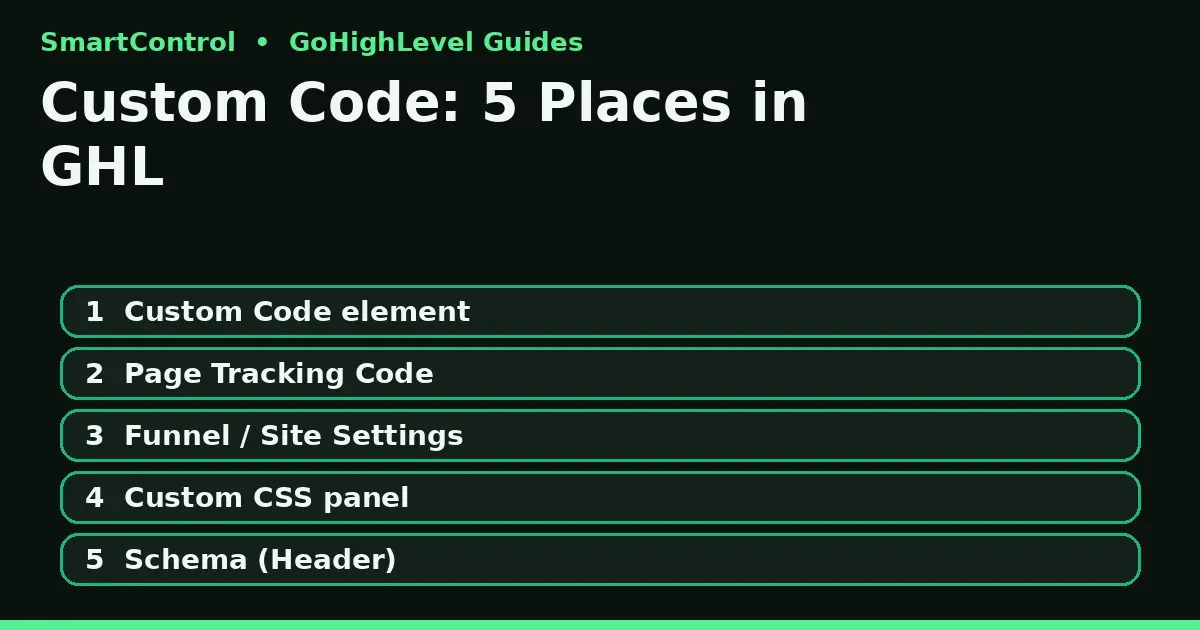
The short answer is this: GoHighLevel has five places for code. Use the Custom Code element for code that shows on one spot of one page. Use Tracking Code for scripts on one page. Use funnel or website Settings for scripts on every page. Use the Custom CSS panel for style only. The place you pick decides if the code works or breaks.
First, pick the right place (30-second decision)
| Your code is… | Paste it here | Scope |
|---|---|---|
| A widget, embed, form, video, or review box you can see | Custom Code element on the page | One spot, one page |
| A pixel or script for one page only (like a Thank-You page event) | Page Tracking Code — Header or Footer | One page |
| A pixel or script for every page (GA4, Meta Pixel base code) | Funnel/Website Settings — Head/Body tracking code | Whole funnel or site |
| Design changes: fonts, colors, spacing, button shape | Custom CSS panel (page) or site CSS | Page or site |
| Schema (JSON-LD) for Google | Page Header Tracking Code | One page |
If you remember only one rule, remember this: page-level code runs on one page. Settings-level code runs on all pages. Most “my code fired 10 times” bugs come from pasting an event script at site level.
Method 1: The Custom Code element (visible code on a page)
Use this for HTML embeds: review widgets, calendars from other tools, custom forms, video players, pricing tables, or your own HTML block. The GoHighLevel website builder and the funnel builder share this same code system, so what you learn here works on every GoHighLevel landing page you build — a point most GoHighLevel tutorial videos and the GoHighLevel help docs state, but rarely show place by place the way this guide does. Everything runs inside your GoHighLevel CRM account, on pages you already own.
- Go to Sites → Funnels (or Websites) and open your page in the builder.
- Click Add Element and choose Custom Code (in some builders it says Custom JS/HTML).
- Drag it to the exact spot where the code should show.
- Click the element and choose Open Code Editor.
- Paste your full code. Keep any
<script>tag as its own block after your main<div>, not inside it. - Click Save, then Publish.
- Open the live page link and check it there. The builder canvas often shows a blank box for scripts. The live page is the truth.
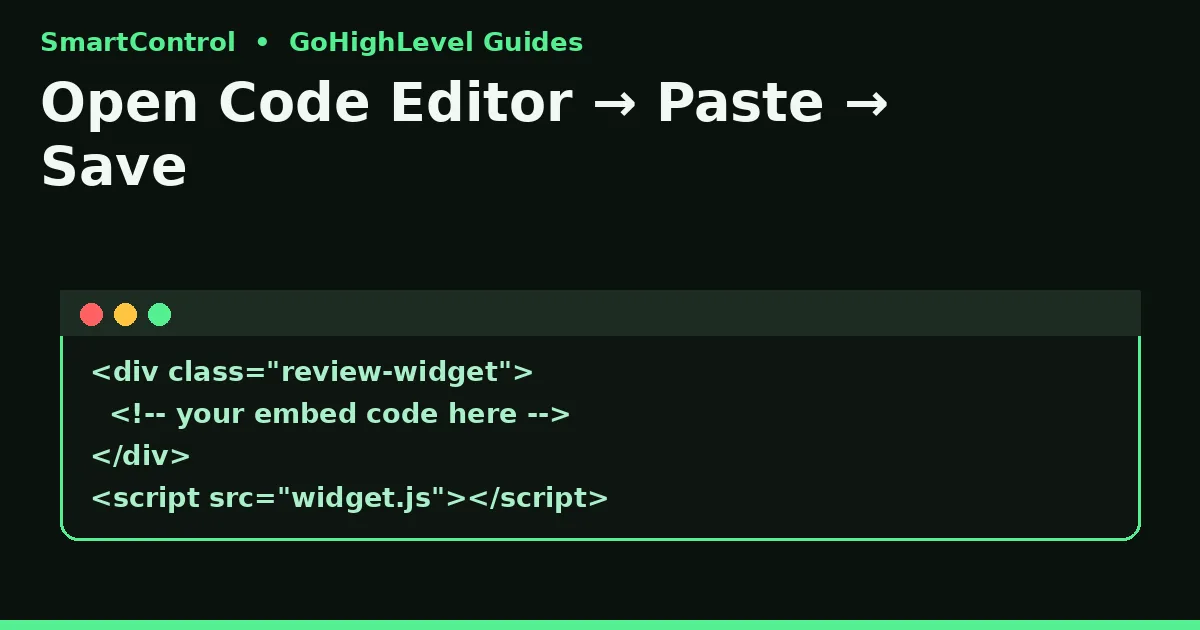
Adding a Custom Code element in the GoHighLevel funnel builder takes under a minute.
Method 2: Page Tracking Code (scripts for one page)
Use this for scripts that must not be seen: a conversion event on a Thank-You page, or page-level schema.
- Open the page or funnel step in the builder.
- Click Tracking Code in the builder menu.
- Paste your script in Header Tracking or Footer Tracking, as your provider tells you.
- Save, then check the live page with your provider’s test tool (Meta Events Manager Test Events, or Google Tag Assistant).
Header or footer? Follow the provider’s own note. As a rule: base scripts go in the header. Event scripts for “this page only” still go on that page alone — never at funnel level.
Method 3: Funnel or Website Settings (scripts for every page)
Use this for GA4 and the Meta Pixel base code — code that must fire on all pages.
- Go to Sites → Funnels (or Websites) and open the funnel or site.
- Open Settings.
- Paste the script in Head tracking code or Body tracking code.
- Save and test one page. If it fires there, it fires on all pages of that funnel or site.
Note: funnel settings do not copy to your website. If you run both, paste the base code in both places. In Go High Level, funnels and websites are separate builders, with separate settings.
Method 4: Custom CSS (design only, no HTML)
CSS changes how a page looks. It does not add content.
- Open the page in the builder.
- Open the Custom CSS panel from the top-left menu.
- Paste clean CSS only — no
<style>tags needed in most panels; if your snippet has them and styles break, remove the tags and keep the rules. - Put CSS in the CSS panel, and scripts in Footer Tracking. Mixing them is a top cause of a flash of broken design on load.
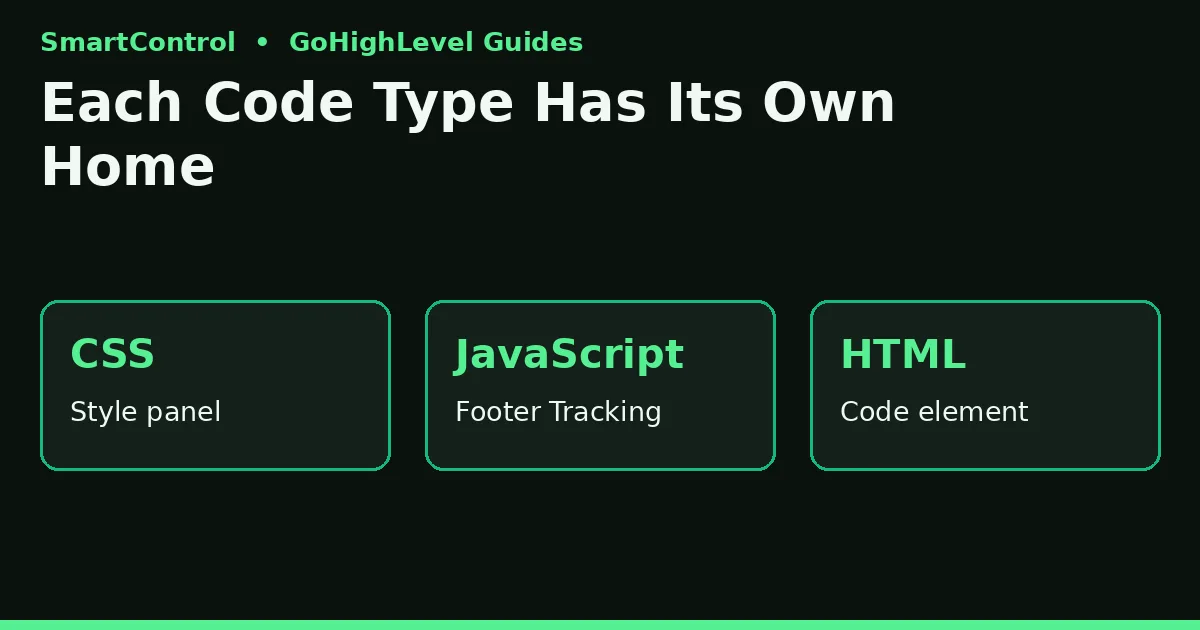
Keep each code type in its own home — CSS, scripts, and HTML do not mix.
Method 5: Schema markup (JSON-LD) for SEO
Schema is a small but real part of GoHighLevel SEO. It helps Google read your page as a business, a service, or an FAQ. Paste the full block — wrapped in <script type="application/ld+json"> … </script> — into the page’s Header Tracking Code. Without the script wrapper, the JSON shows as text on your page. Add schema per page; there is no one setting that adds it to all pages for you.
Why your custom code is not working: 7 fixes
- You checked the builder, not the live page. Scripts often do not run inside the editor. Always test the published link.
- The code is in the wrong scope. A Thank-You event in funnel Settings fires on every step. Move it to the step’s Tracking Code.
- The script is nested wrong. Keep
<script>outside and after your main wrapper<div>. - CSS and JS are mixed. CSS in the CSS panel. JS in Footer Tracking. HTML in the element.
- The page was not republished. Save is not publish. Publish, then hard-refresh (Ctrl/Cmd + Shift + R).
- A second tool blocks it. Ad blockers and cookie banners can stop pixels on your own test. Test in a clean browser window.
- The provider code is incomplete. Copy the full snippet again from the source. Half a pixel never fires.
Do it yourself, or get help?
Do it yourself if your code is one widget, one pixel, or one CSS fix. This guide covers that fully. Get help if your funnel needs tracked bookings across ads, GA4, and the CRM with no double fires — one wrong paste can report 10 leads when you got 1, and every ad choice after that is built on bad data.
Book a GHL Strategy Call and bring your page link and the code you want to add: https://smartcntrol.com/book-a-call — we will tell you the right place for it and what else on the page needs fixing.
FAQ
Where do I paste custom code in a GoHighLevel funnel?
For visible code, add a Custom Code element on the step. For scripts, use the step’s Tracking Code, or the funnel’s Settings for all steps.
Can I add custom HTML to a GoHighLevel website page?
Yes. The website builder has the same Custom Code element as the funnel builder. The steps are the same.
What is the difference between Header Tracking and Footer Tracking?
Both run scripts on that page. Providers tell you which one to use. Base scripts usually go in the header; many page scripts work fine in the footer and load last.
Why does my code show as text on the page?
You pasted a script or JSON block as plain content, or without its <script> wrapper. Paste it in a code area, not a text element.
Does custom code slow my page down?
It can. Every extra script adds load time. Remove old pixels, compress big images, and test the live page on a phone before you add more.
Can I add code to all sub-account pages at once?
No single switch does that. Site-wide means one funnel or one website. Repeat the Settings paste for each funnel and website you run.
Keep learning: Why Is My GoHighLevel Workflow Not Triggering? · GoHighLevel Custom Fields vs. Custom Values · GoHighLevel Workflow Automation Guide
SmartControl builds funnels, websites, pipelines, calendars, and automations in GoHighLevel for agencies and local businesses. Last updated: October 2026.
