
GoHighLevel Workflow Automation: A Simple Setup Guide for Agencies
When someone sends a request through your website, your team may need to assign the lead, confirm the request, and plan a follow-up. If one step is missed, the lead can wait longer than expected.
GoHighLevel workflow automation can handle repeat tasks after an event happens. For example, a form submission can start a workflow that adds a tag, assigns the contact, sends a confirmation email, and creates a follow-up task. It does not replace good service. It helps your team follow a clear process each time.
This guide shows a simple lead-intake workflow for an agency. Menu names may change as HighLevel updates its software, so check the labels in your account.
What is a GoHighLevel workflow?
A workflow is a set of steps that starts after an event. The event is called a trigger. The steps that follow are actions. A form submission, appointment booking, or contact tag can be a trigger. Actions can send an email, assign a contact, add a tag, or create a task.
The trigger answers, “When should this start?” The actions answer, “What should happen next?”
A simple workflow for a new lead
For this example, a person submits your service form. The workflow confirms that the request arrived and reminds your team to follow up.
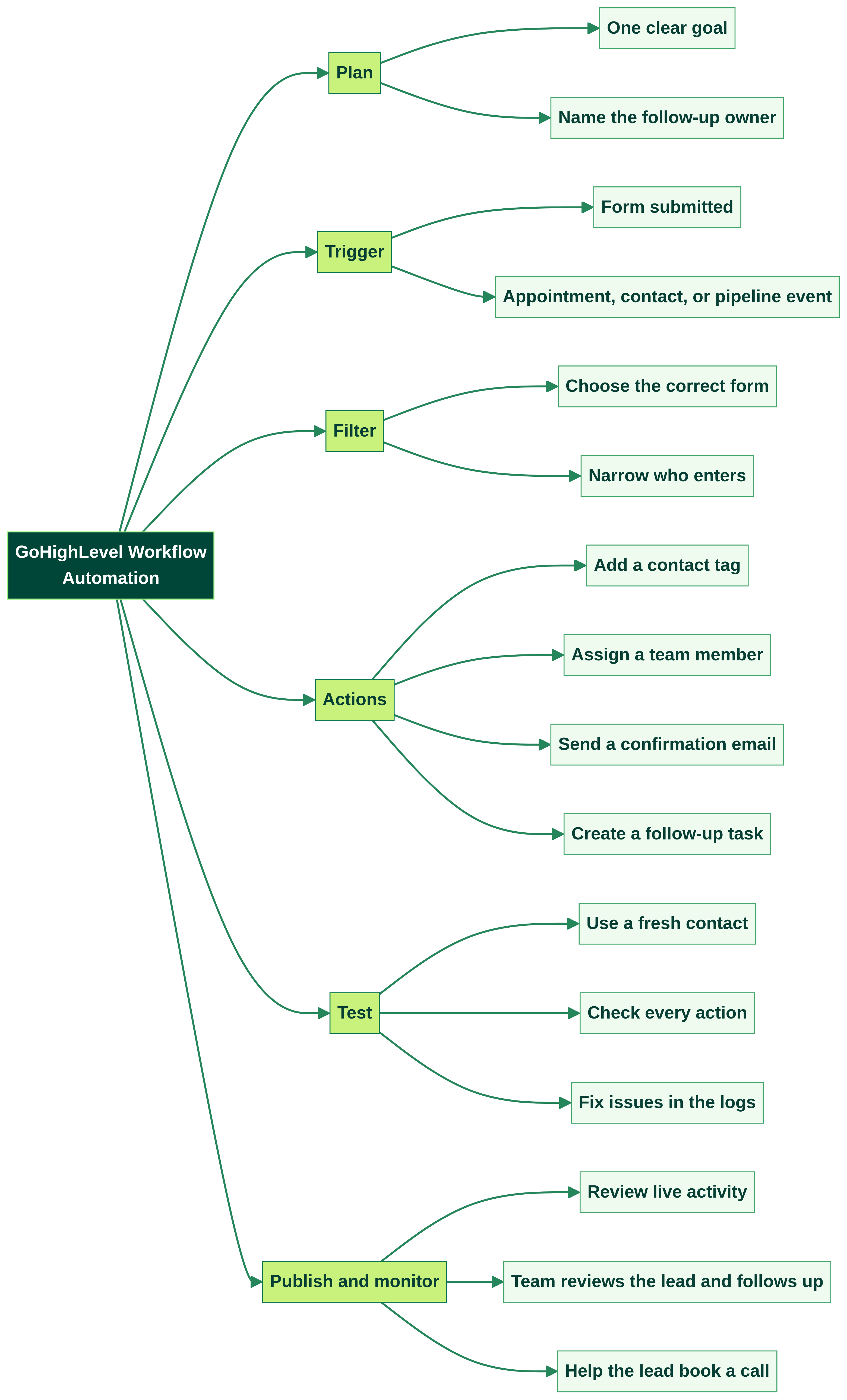
Example workflow map. Choose steps that fit the real process in your account.
The flow is simple: add a tag such as new-service-lead, assign the contact to a team member, send a short confirmation email, and create an internal task. Use names that your team understands. A smaller workflow is easier to test.
How to build it
1. Write one clear goal
Start with this sentence: “When someone submits our service form, confirm the request and create a follow-up task.” One goal keeps the workflow easy to build. If you also need appointment reminders or customer onboarding, plan those as separate workflows or clear branches.
2. Create the workflow
In your location account, open Automation and then Workflows. Choose to create a workflow. HighLevel may offer a blank build, templates, or an AI builder, depending on your account settings.
A template can save time, but check every trigger, action, and message before using it.
3. Choose the trigger
Select Form Submitted, then choose the service form that should start the workflow. HighLevel also offers triggers for contacts, appointments, and pipeline events. Pick the event that matches the real start of your process.
Check the form name carefully. If the workflow should run only for one form, use a trigger filter if that option is available. A filter narrows down which events qualify.
4. Add only the needed actions
For this example, add a contact tag, assign the contact to a team member, send a confirmation email, and create a follow-up task. These are available workflow actions in HighLevel.
Keep the email short. Confirm that the request arrived, say what happens next, and give a way to contact your team. Do not promise a reply time unless your team can meet it. You may also add an internal notification for the assigned person.
If you add SMS later, first check that you have the right consent and messaging setup for the people you contact. Rules depend on the audience and message type.
5. Test with a fresh contact
Before publishing, submit a test through the same form a visitor would use. HighLevel recommends testing with a fresh contact when troubleshooting. Check that the contact entered the workflow and that the tag, assignment, email, and task are correct.

Test the full path before sending real visitors into the workflow.
Do not test only by looking at the canvas. The wrong form, filter, email, or assigned person can still be selected.
6. Publish and monitor
Review the setup, then publish it. Saving keeps your draft; publishing lets the workflow run live. HighLevel can flag some setup errors before publish, but testing and monitoring are still important.
If the workflow does not work
First check whether the correct form was submitted. Then check the trigger filters and re-entry settings. A contact may not enter again if repeat entry is limited. HighLevel recommends testing with a fresh contact and comparing test behavior with live behavior.
If the contact entered but an action failed, open Execution Logs or Enrollment History. Look for a skipped step or an error. Open that action and check its settings. Some setup problems can be saved in a draft, but a publish-blocking issue must be fixed before the workflow can go live.

Use the contact’s path and execution details to find the step that needs attention.
Keep people in control
Automation handles repeat tasks. A person should still review unusual requests, answer questions, and make decisions that need judgment. Check every message before it goes live. If you add reminders, plan what should happen when a lead books, opts out, or no longer fits the process. Test those stop rules so the person does not receive the wrong follow-up.
When should an agency get help?
A simple form-to-email workflow may be easy to build in-house. Extra help can be useful when several forms, pipelines, calendars, or client accounts must work together, or when an existing workflow is hard to fix.
Ask what the service includes. A clear scope can cover process mapping, trigger and filter setup, actions, testing, notes for your team, and handoff. Ask how changes will be tested and what is not included.
Need help planning or fixing your GoHighLevel automations? Book a call with SmartControl to discuss your workflow and next step. Link this button to your verified booking calendar.end date, and limits.
GoHighLevel Workflow Automation: A Simple Setup Guide for Agencies
These questions are useful for readers. Their search popularity has not been verified.
What is GoHighLevel workflow automation?
It runs steps after a selected event, such as a form submission. A trigger starts the workflow, and actions handle the next tasks.
What is the difference between a trigger and an action?
A trigger is the event that starts a workflow. An action is a task that runs after it starts, such as sending an email or creating a task.
Why is my GoHighLevel workflow not firing?
Check the trigger, selected form, filters, and re-entry settings. Then test with a fresh contact and review the execution details.
Can GoHighLevel send an email after someone submits a form?
Yes. A Form Submitted trigger can start the workflow, and Send Email is an available action. Test the form and email before publishing.
Should I use a template or build from scratch?
A template can help you start faster. Review its trigger, filters, actions, and messages first. Build from scratch when you need a small process that does not match a template.