
GoHighLevel Workflow Not Triggering? 9 Checks in Order
Your workflow looks right. The steps are there. But no message goes out, no tag is added, nothing happens. This is the most common GoHighLevel problem posted in user groups every single week.
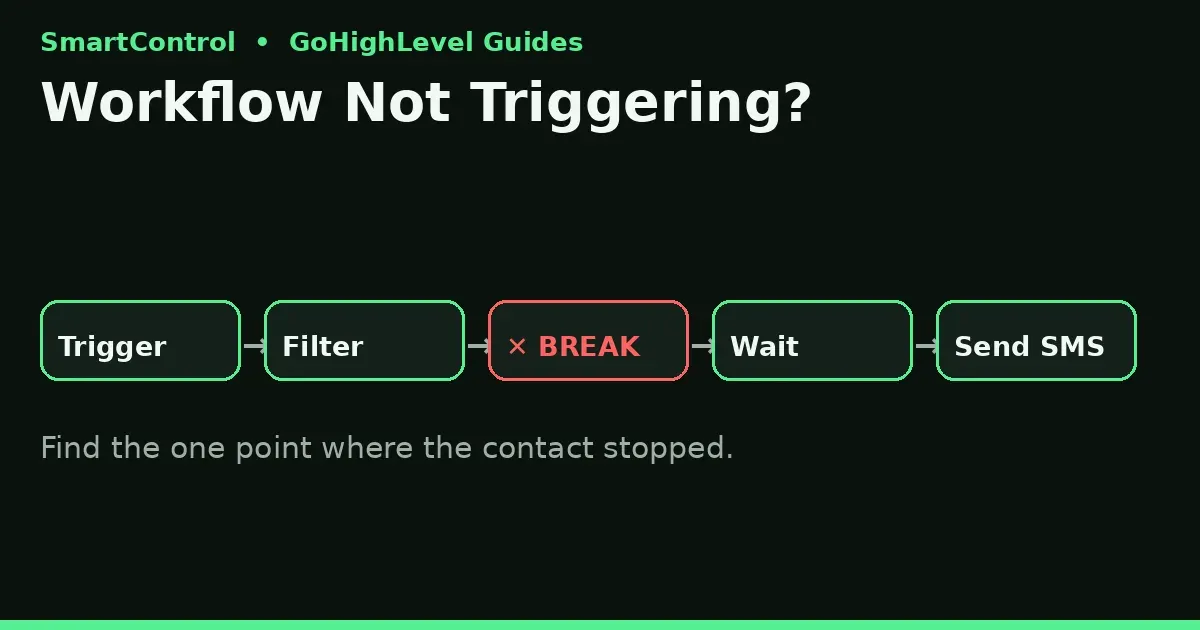
Here is the truth most people miss: the workflow is usually not broken. The contact never entered it, or entered and stopped at one step. Do not rebuild the workflow. First find where the contact stopped. These 9 checks, in order, find the break.
The golden rule before you change anything
Open the contact record of the person who should have entered. Check the Workflows section on the right side — it shows every workflow the contact is in, and where they are in it.
- The workflow is not listed at all → the contact never entered. Your problem is the trigger or the filters (Checks 1–3).
- The workflow is listed, but stuck → the contact entered and stopped. Your problem is inside (Checks 5–8).
This one look cuts your debug time in half. Never guess which half you are in.
Check 1: Is the workflow published?
A workflow in Draft mode never runs. Not for one contact, not ever. Draft is for building only.
Go to Automations → Workflows, open yours, and look at the toggle at the top. It must say Publish. Many people build, save, and close — and a saved draft feels done. It is not.
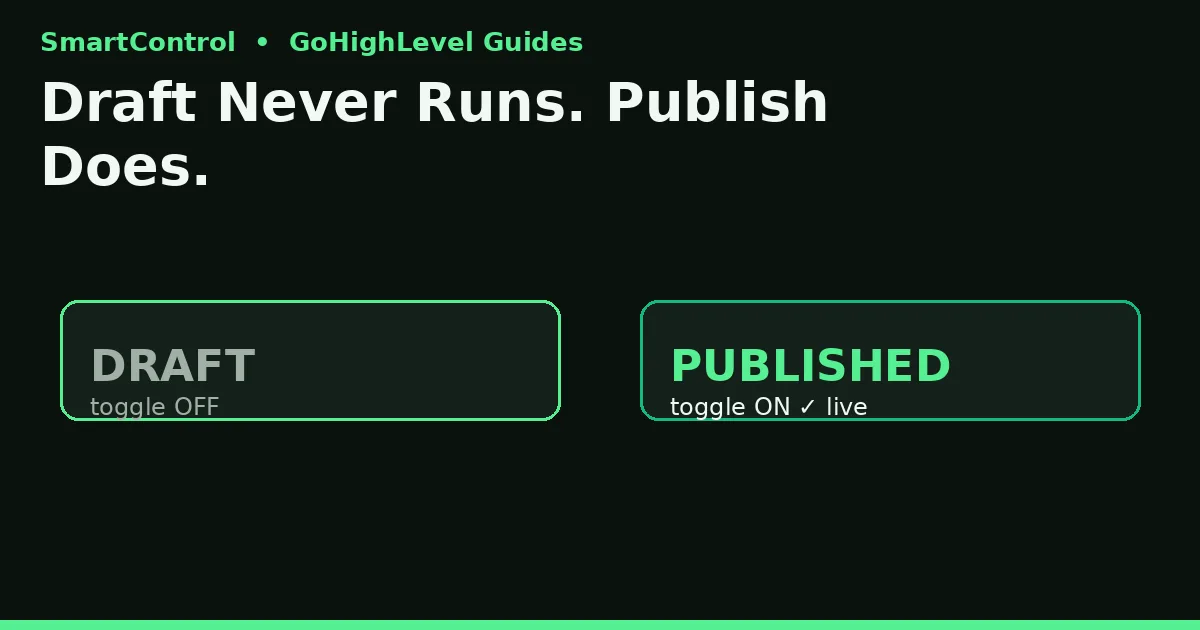
Draft workflows never run. Publish is the most-missed step in GoHighLevel.
Check 2: Did the trigger event really happen?
A workflow only starts when its trigger event happens after the workflow is published. Test this the right way:
- Form Submitted trigger? Submit the real form, on the live page, with a fresh test contact. Do not use an old contact who filled it last week.
- Tag Added trigger? Add the exact tag to a test contact now.
- Appointment Booked trigger? Book a real test appointment on that calendar.
- Pipeline Stage Changed trigger? Move a test contact to that exact stage.
Old events do not fire new workflows. If your test uses old data, your test is wrong, not the workflow.
Check 3: Are trigger filters blocking entry?
Filters sit on the trigger like a gate. One wrong filter blocks everyone, with no error message.
Open the trigger and read every filter line. Common traps:
- A tag filter asks for a tag the contact gets later in the same flow. The gate is locked before the key exists.
- A form filter names one form, but the lead used a second form with a near-same name.
- A custom field filter uses “is” when the field holds slightly different text (“Yes” vs “yes” vs a checkbox value).
Fix: remove all filters, test with no filters, confirm entry, then add filters back one at a time.
Check 4: Is the contact already inside the workflow?
If a contact is already in the workflow, many triggers will not add them again. If they are inside an old run — parked on a long Wait step, for example — the new event looks like “nothing happened” when the contact is simply already in line.
Check 5: Re-entry settings — can they enter twice?
Open workflow Settings and find Allow Re-entry (sometimes shown as “Allow multiple / re-entry”).
- Re-entry off: once a contact finishes (or is inside), the trigger will not start them again. This is correct for a welcome flow. It is wrong for repeat events like “booked a new appointment.”
- Re-entry on: each new trigger event can start a new run.
Match the setting to the job. Booking, payment, and form flows for repeat customers usually need re-entry on, plus Stop on Response or a Goal event so old runs end cleanly.
Check 6: Is the contact stuck on a Wait step?
Open the workflow’s Execution Logs / History (or open the run from the contact record). If the contact sits on a Wait step, the workflow is not broken — it is waiting, by design.
Check what the Wait waits for:
- Time wait: has the time passed? A “wait 3 days” step looks dead for 3 days.
- Event wait: it waits for an action (booked, replied, paid) with a timeout. If the event already happened before the contact reached the Wait, the Wait may never see it.
- Response wait with Stop on Response: a reply moves them on — or ends the flow — based on your setting.
Check 7: Did a Goal event or condition exit them early?
A Goal step pulls a contact straight to the goal point — or out of the flow — the moment the goal event happens. An If/Else path can also send a contact down a branch with no message actions, which looks like “the workflow did nothing.”
Trace the test contact’s path in the execution history, step by step. The path tells you the truth. The canvas only tells you the plan.
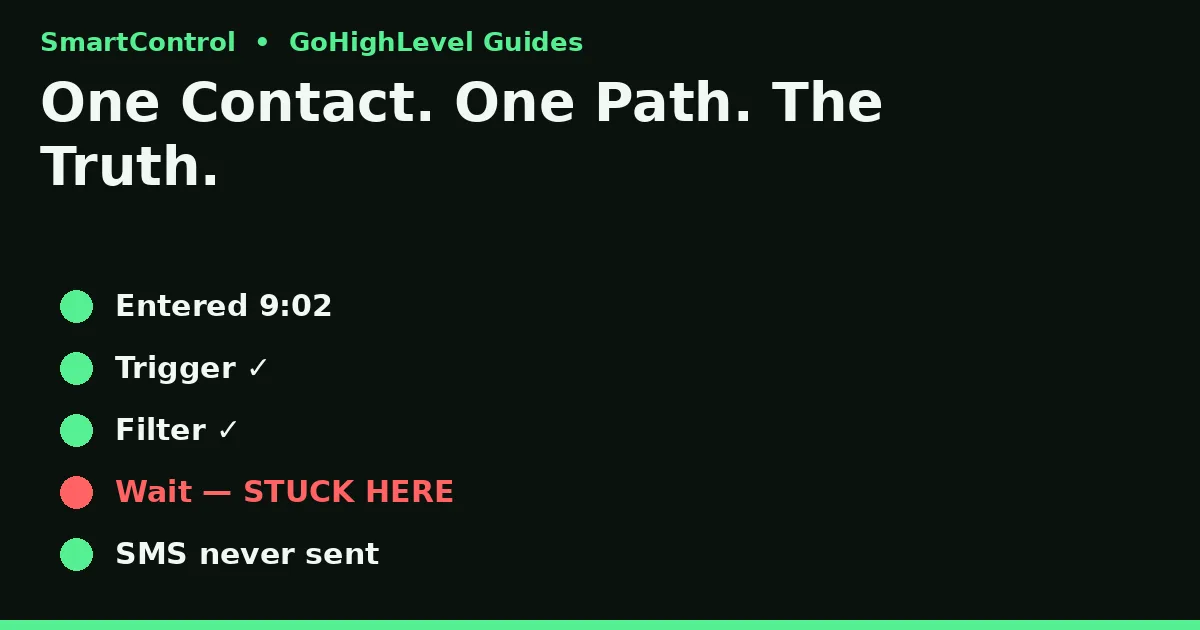
Read one contact’s execution path — it shows what really happened, not what you planned.
Check 8: Did the action fail, not the workflow?
Sometimes the workflow ran fine and one action failed: an SMS to a number that cannot get texts, an email to a bad address, or a message blocked because the number is not A2P-registered. The execution log marks failed actions — read the error on the action itself. It usually names the cause: invalid number, no consent, carrier block.
Check 9: Test the clean way, once
After any fix, test once, end to end:
- Create a brand-new test contact (your own phone and email).
- Do the real trigger event on the live page or calendar.
- Watch the contact record: entry, each step, the message in Conversations.
- Only then turn the flow loose on real leads.
Quick decision table
| What you see | Real cause | Go to |
|---|---|---|
| Contact never appears in the workflow | Draft mode, dead trigger event, or blocking filter | Checks 1–3 |
| Contact is in, but frozen mid-flow | Wait step or If/Else branch | Checks 6–7 |
| It worked once, never again for same person | Re-entry off, or already inside | Checks 4–5 |
| Steps ran, but no message arrived | Action-level fail (number, email, A2P) | Check 8 |
Do it yourself, or get help?
Do it yourself if one workflow on one trigger is stuck — these 9 checks fix that case. Get help if leads are entering your CRM software and no follow-up fires across forms, calendars, and pipelines. That is a system fault, not a workflow fault, and every day it runs, real leads get no reply.
New to Go High Level? GoHighLevel workflows are the heart of GoHighLevel automation — the marketing automation inside your GoHighLevel CRM. When one trigger breaks, follow-up stops with it. Most GoHighLevel help and GoHighLevel support threads trace back to these 9 checks, and any honest GoHighLevel tutorial starts the same way: find where the contact stopped.
Book a GHL Strategy Call and tell us which workflow is stuck: https://smartcntrol.com/book-a-call — we will trace one contact live and show you the break point.
FAQ
Why is my GoHighLevel workflow not triggering for one contact only?
Usually that contact is already inside the workflow, finished it with re-entry off, or was blocked by one trigger filter. Check the contact record’s Workflows section first.
Does a draft workflow run if I add a contact to it by hand?
No. In draft, nothing runs live. Publish first, then test.
Where do I see what a workflow did to a contact?
In the workflow’s execution history, and in the contact record under Workflows. The history shows each step, its time, and any failed action.
Should Allow Re-entry be on or off?
On for repeat events (new booking, new payment, new form). Off for one-time flows (welcome, onboarding). Add a Goal or Stop on Response so runs do not stack messages.
My workflow triggers, but the SMS never sends. Why?
That is an action fail, not a trigger fail. Check the execution log error, the number’s format, consent, and A2P 10DLC registration for US texting.
Can a Wait step block a workflow forever?
Yes, if it waits for an event with no timeout. Always set a timeout on event waits, with a clear next step when time runs out.
Keep learning: GoHighLevel Workflow Automation: A Simple Setup Guide for Agencies · GoHighLevel Custom Fields vs. Custom Values · How to Add Custom Code in GoHighLevel
