

GoHighLevel Custom Fields vs. Custom Values: A Simple Guide

Use custom fields for information that can change by contact or deal. Use custom values for details you reuse across a GHL location.
Have you ever wondered whether a piece of information belongs in a custom field or a custom value? The names sound alike, but they do different jobs in GoHighLevel.
Here is the quick rule: if the answer can change from one contact or deal to another, use a custom field. If the same business detail is reused across a location, use a custom value. HighLevel’s current guidance makes this distinction and supports both contact and opportunity custom fields.
Choose the right place before you build a form, workflow, or email. It helps keep your CRM clear and makes it easier to use the saved information later.
What is a GoHighLevel custom field?
A custom field stores extra information on a record. A contact field is about one person, such as preferred service, best time to call, or referral source. An opportunity field is about one deal, such as project budget, expected close date, or service package.
Use a field when the answer may differ between records. One contact may want funnel help, while another needs workflow support. Those answers belong on their contact records, not in one shared business value.
HighLevel uses the selected field type and object to determine where the data can be used. Contact fields can be used in contact forms and workflows. Opportunity fields belong to the deal and are used in opportunity-focused workflows and pipeline views. Check the object before creating a field: HighLevel says a field cannot be switched from contact to opportunity afterward.
What is a GoHighLevel custom value?
A custom value stores a reusable detail for a GHL location. Examples include SmartControl’s business phone, support email, website address, office hours, booking link, or a standard footer line.
You can insert a custom value in supported emails, messages, websites, funnels, and workflow text. If the business phone changes, you can update the saved value rather than finding every place where you typed the old phone number. Availability can differ by editor, so use the value picker and check how it appears.
A custom value is not the place to store each contact’s first name, budget, or preferred service. Those are individual details. Use a contact field or the correct built-in contact merge field instead.
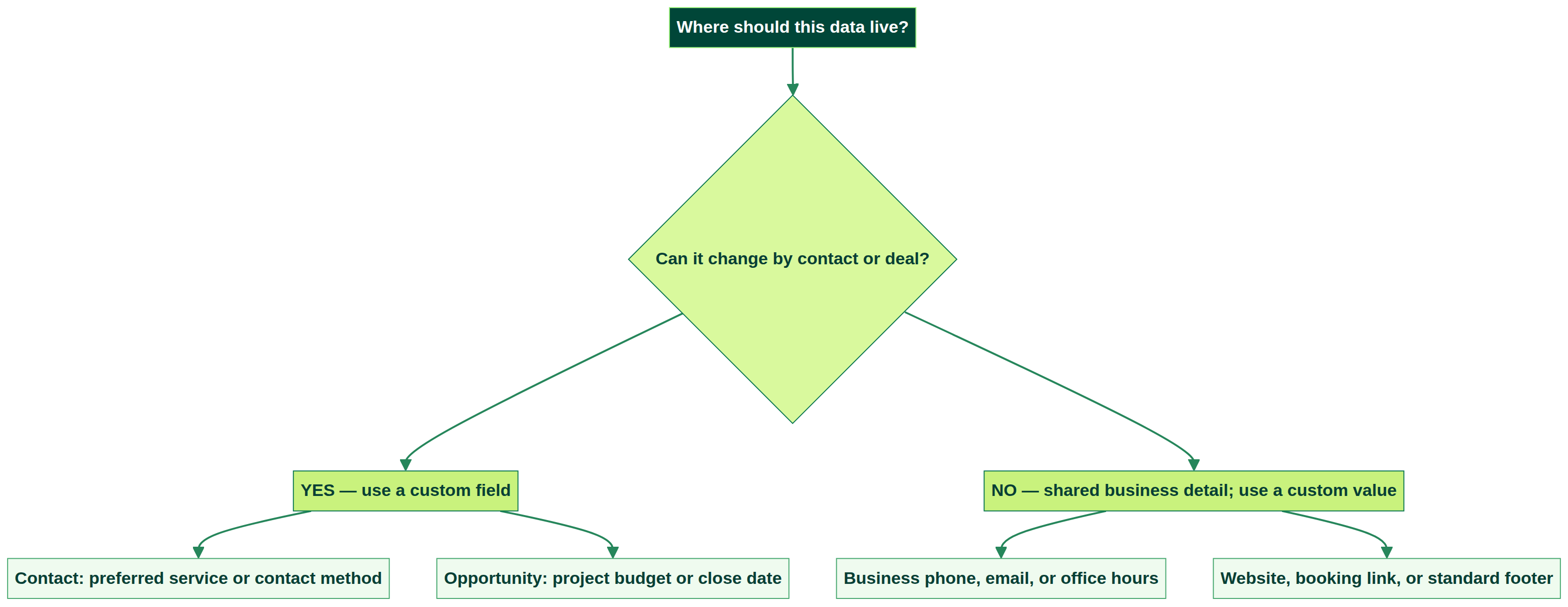
Decision guide: if the answer changes by person or opportunity, use a custom field. If it stays the same across the location, use a custom value.
A quick way to choose
Ask yourself: “Could this answer be different for each person or deal?”
If yes, create the right custom field. For a prospect, that might be preferred service or contact method. For a deal, it might be budget or project type.
If no, and the same information is used for the whole GHL location, save it as a custom value. For example, use one support email, booking URL, or business tagline in the places where it is supported.
Do not choose based on where it is easiest to type. Choose based on who or what the information belongs to. That keeps reporting, forms, and automations easier to understand.
How to create a custom field
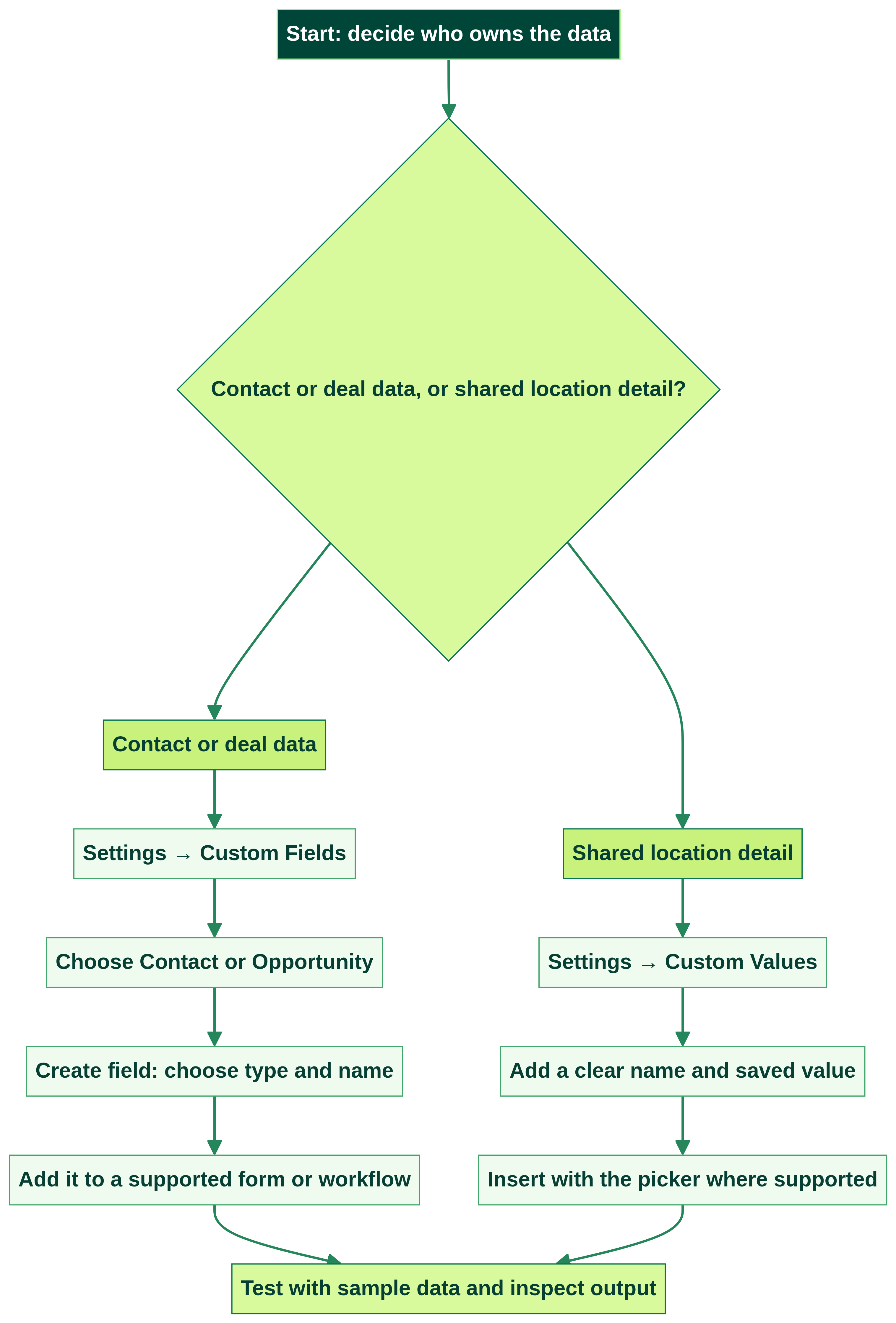
1.In your location account, open Settings → Custom Fields.
2.Use the object selector to choose Contact or Opportunity.
3.Open the Fields tab and choose Create field.
4.Select a field type, then enter a clear name and optional folder.
5.Review the preview and save the field.
Use a short name your team can recognize, such as Preferred Service or Project Budget. Before creating it, check that a similar field does not already exist. If you need the answer on a website form, use a contact field that fits the form and test where the answer appears.
How to create and use a custom value
1.Open Settings → Custom Values in the same location.
2.Choose + Add Custom Value.
3.Give it a clear name, enter the reusable information, and choose a folder if you want one.
4.Save it. In a supported email, page, message, or workflow editor, use the merge-field or custom-value picker to insert it.
Use the data carefully in forms and workflows
For a lead form, use contact fields for answers the lead provides, such as preferred service or best time to call. After submission, a workflow can use a field to sort or route a lead if that trigger and action support it. For an opportunity, use opportunity fields for details about the sales deal itself.
Use custom values for shared information in messages or page content. Before publishing a workflow or page, submit a test with sample data and check the final email, text, link, or page. A merge field may appear blank if its source is unavailable in that context. Use the picker where available, then test the output with sample data.
Common mistakes to avoid
Putting a contact’s first name in a custom value: that value is shared at the location level. Use the built-in contact merge field so each message can use that contact’s information.
Creating a field under the wrong object: contact and opportunity fields appear in different places. Pick the right object first because HighLevel says you cannot switch it later.
Typing a merge token from memory: the wrong token or an unsupported editor field may show blank. Use the picker, send a test, and check the rendered result.
Making too many fields: every field should help your team collect, route, or use information. Keep names short and group related fields in folders.
Want help planning your GHL data setup?
SmartControl can help review your fields and values, organize the right data, and connect it to forms or workflows. Book a call to discuss the setup you need: https://smartcntrol.com/book-a-call.
GoHighLevel custom field and custom value FAQs
These questions are useful for readers; they are not verified as the most-searched FAQs.
What is a custom field in GoHighLevel?
It is a place to store extra information on a contact or opportunity record, such as a preferred service or deal budget.
What is a custom value in GoHighLevel?
It is a reusable value for information shared across a GHL location, such as the business phone, support email, or booking link.
What is the difference between custom fields and custom values?
Use a custom field for information that can change by contact or opportunity. Use a custom value for reusable details that stay the same across the location.
Should I use a contact field or opportunity field?
Use a contact field for information about the person. Use an opportunity field for details about a specific deal, such as its budget or service package.
Where do I add custom values in HighLevel?
Open Settings → Custom Values, add a name and the value, then insert it with the picker in a supported editor.