
GoHighLevel Workflow Error Notifications: 6 Checks
A workflow broke on Tuesday. Nobody knew until Friday, when a client asked why their follow-ups had stopped. The workflow had not visibly crashed — it had simply failed at one step, and the failure sat quietly for three days. That is the normal experience when GoHighLevel workflow error notifications are left at their default setting, because the default setting is off.
GoHighLevel workflow error notifications exist to tell you when a step fails — a webhook error, a dead Slack step, a broken sheet sync. But they only help if you turn them on, and even then they have limits: one email per 24 hours, and some failures never raise an error at all.
Answer box: GoHighLevel workflow error notifications are off by default, so a workflow fails until you enable them. Turn them on in Workflow Settings, add recipients, and check the Needs Review tab — it lists workflows with errors and links to the logs. After the error email, you get at most one per 24 hours, so the tab check catches repeat breaks.
In this post:
- Why GoHighLevel workflow error notifications stay silent
- 6 checks that catch silent breaks
- Symptom-to-fix table
- Frequently asked questions
Why GoHighLevel workflow error notifications stay silent
There are four reasons, and the first one is the one that catches almost everyone.
1. They are off by default
HighLevel’s own support page states it plainly: “By default, Notifications will be turned off.” Until someone opens Workflow Settings and flips the toggle, no error email is sent for any workflow in the account. Teams assume the platform will tell them when something breaks. It will not, until you tell it to.
2. The email limit hides repeat breaks
When notifications are on, the first error email arrives immediately — but after that, you receive only one email every 24 hours, with a new email sent only if fresh errors appear after that window. So a workflow that breaks again on the same day produces no second email. If your only safety net is your inbox, repeat breaks slip straight past it.
3. Errors collect in a tab nobody opens
Failed workflows land in the Needs Review tab, where you can click any item to reach its execution logs and mark errors as read. It is a good system — but only if someone actually opens it. Most teams never learn the tab exists, so the errors sit there unread while the workflow keeps failing for every new contact.
4. Some failures never raise an error
A contact stuck mid-flow — waiting on a condition that never fires, or parked after a skipped step — produces no error entry at all. The workflow has not “failed” in the system’s eyes; it has simply stalled. No notification, no tab entry, no email. These are the breaks you only catch by looking at the workflow itself.
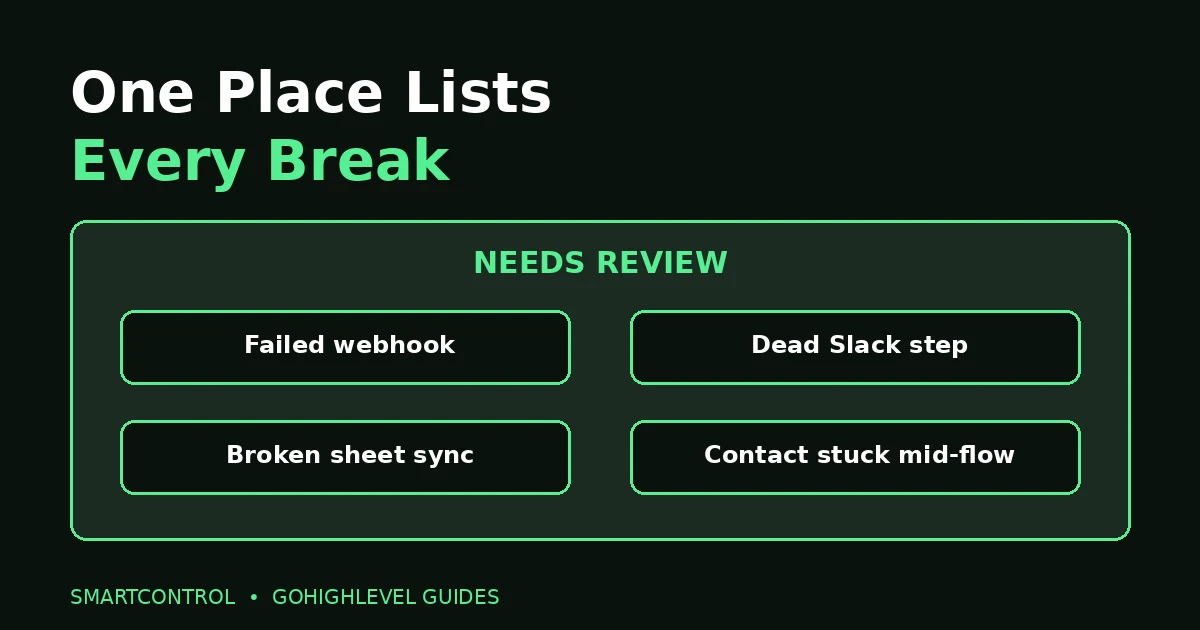
GoHighLevel workflow error notifications collect in the Needs Review tab: failed webhooks, dead Slack steps, broken sheet syncs, and contacts stuck mid-flow.
6 checks that catch silent breaks
Work through these in order. The first two fix the alerting; the rest catch what alerts miss.
Check 1: Turn notifications on, and add recipients
Open Workflows, then Settings, then Notifications, and turn the toggle on. Add every person who should hear about a break — recipients can be added or removed as needed, so put the owner on, not just the person who built the workflow. A notification sent to an inbox nobody reads is the same as none.
Check 2: Open the Needs Review tab every morning
The tab lists workflows with errors; click an item to open its execution logs, fix the failing step, and mark the error as read. The “Review it” button on the error email takes you straight there.
Check 3: Follow the daily routine
Check the tab, fix what broke, re-test, and mark the errors read. That order matters: fixing without re-testing leaves you guessing, and skipping the mark-read step leaves the tab noisy enough to hide the next real error. Five minutes a day beats a Friday-afternoon discovery that three days of follow-ups never went out.
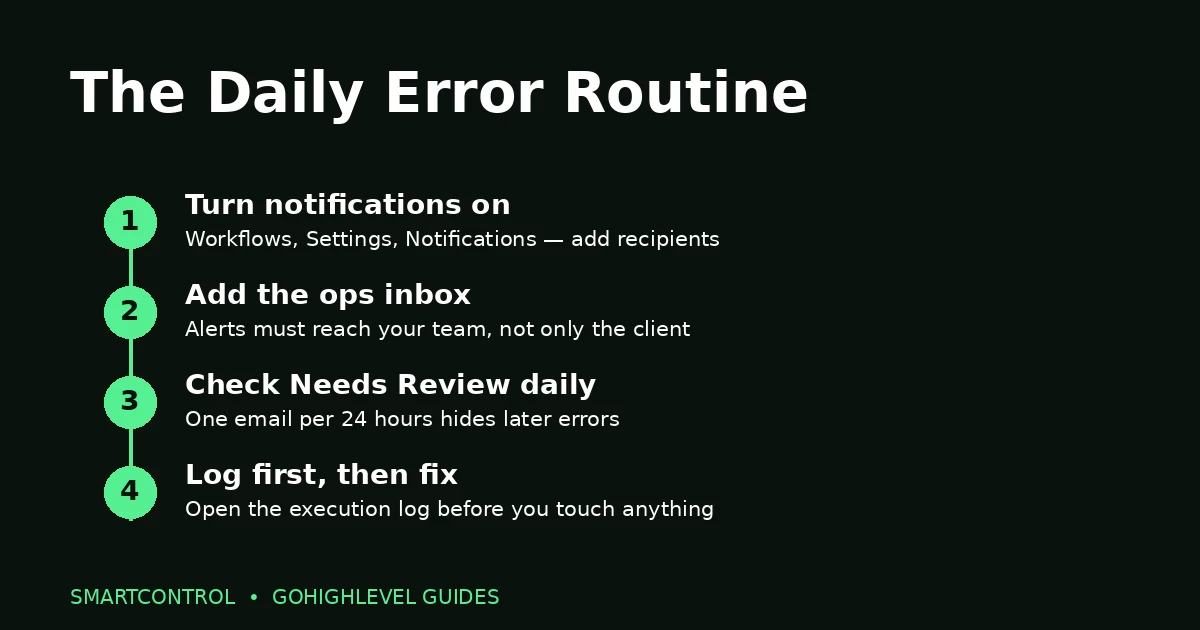
The daily routine: check Needs Review, fix the failing step, re-test, and mark errors read.
Check 4: Hunt stuck contacts, not just errors
Open the execution history of your busiest workflows and look for contacts sitting mid-flow too long, or steps that were skipped. A skipped step caused by a software error or a missing template — an SMS or email template that no longer exists — should raise an alert, but a contact waiting on a condition will not. If a workflow’s enrolments keep growing while its completions do not, something is stalled, even if the tab is empty — and GoHighLevel workflow error notifications will not tell you.
Check 5: Re-test after every edit
A workflow that worked yesterday can break today because one step changed: a webhook URL, a sheet connection, a Slack step, a template. After any edit, run a fresh contact through end to end and confirm every step fires. Test with a fresh contact — one that already entered may be blocked by re-entry rules and tell you nothing.
Check 6: Know which actions are covered
Error notifications currently cover a defined first-phase set: webhooks and custom webhooks, premium actions like Slack, Google Sheets, custom code and ChatGPT, and Facebook and Instagram actions. If the step that broke sits outside that set, GoHighLevel workflow error notifications will not flag it, and the manual checks above are your only safety net. When in doubt, check the workflow by hand.
Symptom-to-fix table
| If you see this | Check this first |
|---|---|
| No error email ever arrives | The Notifications toggle — off by default |
| One error email, then silence | The 24-hour limit — open the Needs Review tab for newer errors |
| Errors pile up unread | The daily routine: check, fix, re-test, mark read |
| Contact stuck mid-flow, no error | Execution history for skipped steps or a condition that never fires |
| Workflow stopped after an edit | Re-test with a fresh contact — a changed step broke silently |
| SMS step fails quietly | The SMS delivery checks in our SMS troubleshooting post |
Use this table when GoHighLevel workflow error notifications are not telling you the full story. That last row deserves a link: when the failing step is an SMS action, the fix may be on the delivery side rather than the workflow side — see GoHighLevel SMS Not Delivered? 9 Checks to Fix It. And if the workflow never fires at all, that is a different problem from alerting: GoHighLevel Workflow Not Triggering? 9 Checks in Order. And when a disconnected calendar breaks reminder workflows, the failure looks like a workflow problem — see GoHighLevel Calendar Keeps Disconnecting? 7 Fixes That Hold.
Frequently asked questions
Are GoHighLevel workflow error notifications on by default?
No. By default, notifications are turned off. Enable them in Workflow Settings, and add the recipients who should receive the emails.
How often do the error emails arrive?
The first error email arrives immediately. After that, you receive only one email every 24 hours, and a new email is sent only if fresh errors are detected after that window. That is why the daily Needs Review check matters more than the inbox.
What does the Needs Review tab show?
It lists workflows with errors. Click any item to open the execution logs, see exactly which step failed, fix it, and mark the error as read.
Do all workflow failures raise an error?
No. A contact stuck mid-flow, or a step skipped because a condition never fired, may never appear as an error. Check execution history for stalled contacts, not just the error tab.
Why did my workflow stop working after I edited it?
A changed step — webhook URL, sheet connection, Slack step, template — can break silently. Re-test end to end with a fresh contact after every edit, and check Needs Review the next morning.
The short version
GoHighLevel workflow error notifications are a good safety net with two honest limits: they start off, and they throttle to one email a day. Turn them on, add real recipients, and check Needs Review every morning. Then go one step further and hunt the failures that never raise an error — stuck contacts, skipped steps, and workflows broken by their last edit. Five minutes a day is the difference between a break you fix in an hour and one a client finds for you on Friday.
If silent workflow breaks are costing you follow-ups and you want them fixed properly, book a free GoHighLevel strategy call and we will sort it with you.
