
GoHighLevel Calendar Keeps Disconnecting? 7 Fixes That Hold
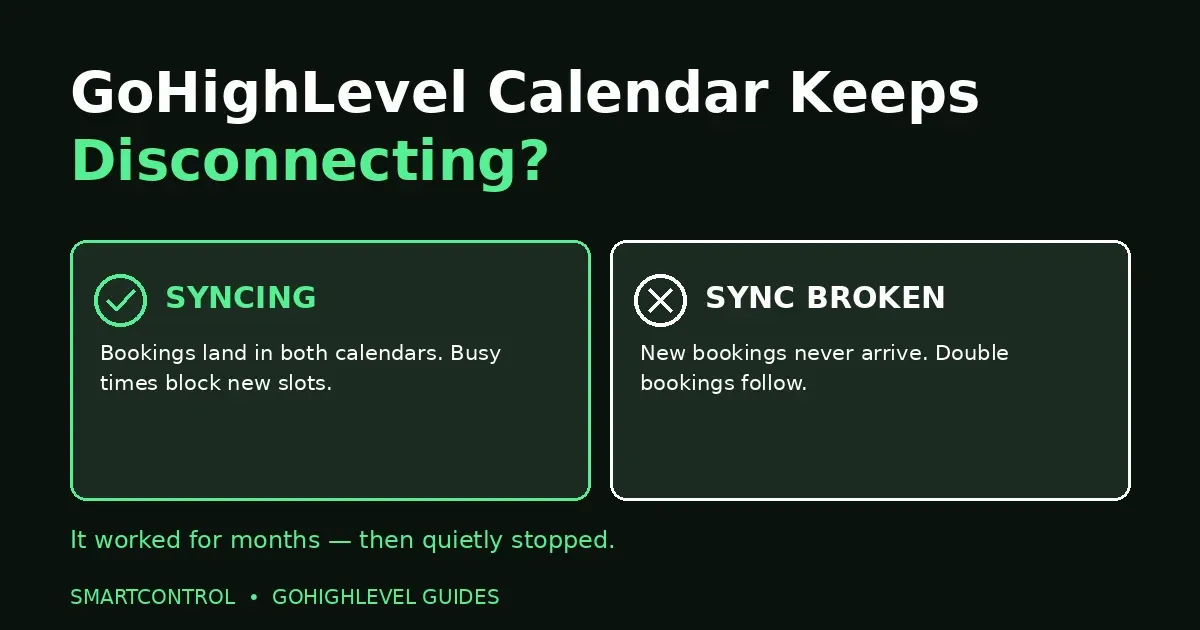
Your calendar worked fine for months. Then one week, bookings stop appearing in Google Calendar. Or worse, two people book the same slot, because the calendar that was supposed to block it quietly stopped syncing. That is what it looks like when your GoHighLevel calendar keeps disconnecting — and it usually breaks silently, with no error message anywhere you normally look.
A GoHighLevel calendar keeps disconnecting for a handful of fixable reasons: an expired authorisation, a changed password, revoked permissions, or the wrong calendar selected as the linked one. The fix is almost always a clean reconnect done in the right order, not a rebuild of the whole calendar.
Answer box: A GoHighLevel calendar keeps disconnecting because the connection to Google or Outlook breaks — most often an expired OAuth token (roughly every 90 days), a changed password, or revoked permissions. Fix it by deleting the broken connection, re-adding it, accepting every permission, and confirming the linked and conflict calendars are selected. Test a booking and set a re-authorisation reminder.
In this post:
- Why your GoHighLevel calendar keeps disconnecting
- 7 fixes that hold
- Symptom-to-fix table
- Frequently asked questions
Why your GoHighLevel calendar keeps disconnecting
There are four usual suspects. Check them in this order, because the first one is the one most teams miss.
1. The authorisation token expired
Connections to Google and Outlook run on OAuth tokens, and those tokens lapse — roughly every 90 days. Nothing announces it. The calendar simply stops blocking slots and stops syncing, while everything inside GoHighLevel looks normal. If your GoHighLevel calendar keeps disconnecting on a schedule of “every few months,” this is almost certainly the cause.
2. The account password changed
Change your Google or Outlook password and the old authorisation dies with it. HighLevel’s own support lists this as one of the top causes of a broken integration: the provider no longer trusts the stored connection, so syncing stops and new appointments stop appearing in the external calendar.
3. Permissions were revoked
Someone removed HighLevel’s access in their Google account settings, or a corporate IT policy did it for them. Outlook users in company tenants hit a second version of this: if the organisation restricts third-party app consent, an admin must approve the LeadConnector app before the connection works at all. A connection that never had full permission behaves exactly like a broken one.
4. Suspicious activity triggered a block
Google sometimes blocks access on its own when it detects unusual activity. The result is the same — sync stops — but the fix is the same too: remove the connection and re-authorise it cleanly, which is what the next section walks through.
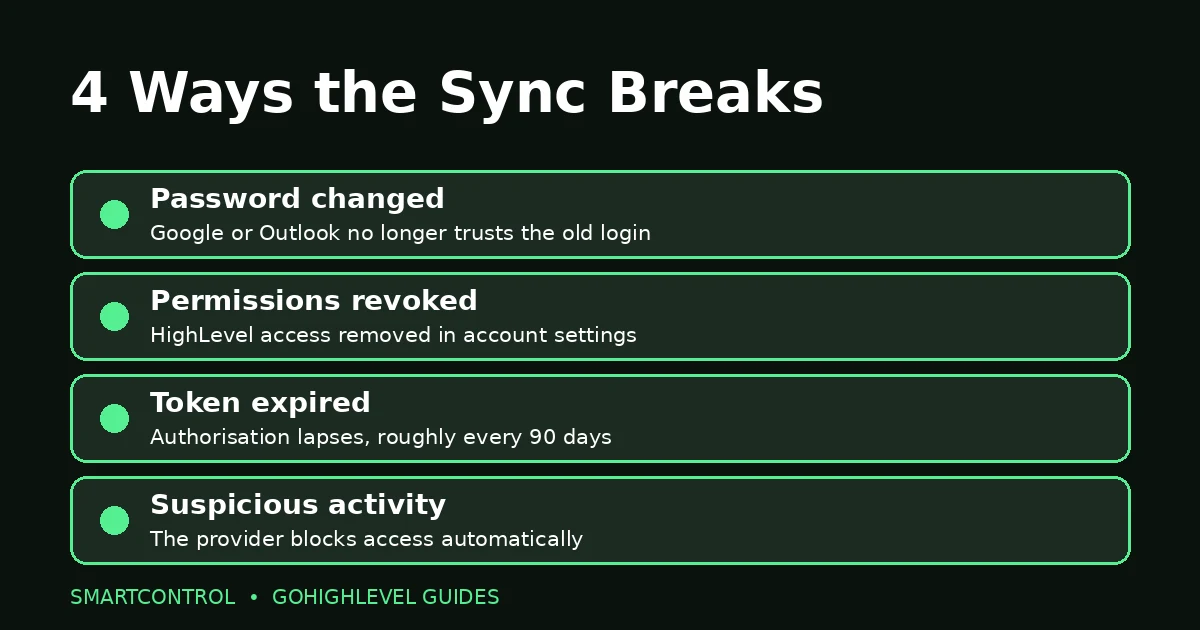
Four ways a GoHighLevel calendar keeps disconnecting: expired tokens, changed passwords, revoked permissions, and provider blocks.
7 fixes that hold
Work through these in order. Most disconnects are fixed by step three; the rest exist for the cases that keep coming back.
Fix 1: Read the banner first
If GoHighLevel shows a red “Reconnect your integration” banner, or the calendar tile is outlined in red, the token has expired or been revoked. That banner is how most teams first learn their GoHighLevel calendar keeps disconnecting. Click Reconnect and re-authorise. If the banner offers a “Fix This” option, the calendar was deleted at the provider — use it, then use “Remove Deleted Calendars” to clean up the broken connection before reconnecting.
Fix 2: Delete the broken connection
When Reconnect alone does not hold, remove the connection properly. Go to Settings, then My Profile, then Calendar Settings, and click the delete icon on the connected Google or Outlook account. Confirm the acknowledgement in the pop-up. A half-removed connection is the most common reason a reconnect fails twice.
Fix 3: Re-add it and accept every permission
Back in Calendar Settings, click Add New and sign in again. Accept every permission the provider asks for — read and write, if you plan to sync bookings back. A read-only connection where write was expected looks connected while bookings silently fail to land.
Fix 4: Pick the right linked calendar
Connecting a profile does nothing by itself. Under the calendar’s configuration, choose the connected calendar as the Linked Calendar — the one GoHighLevel writes appointments to. If the wrong calendar is selected, bookings land somewhere nobody watches, and the team concludes the sync is broken when it is only pointed at the wrong place.
Fix 5: Set the conflict calendars
A linked calendar blocks availability, and so do conflict calendars — the read-only calendars GoHighLevel checks before offering a slot. Select every calendar that should block time, including personal ones. And remember the rule that trips people up: only events marked Busy block slots. An all-day event marked Free blocks nothing, which is why a team member keeps getting booked over “holidays” that were never marked Busy.
Fix 6: Reconnect the user, not just the account
The user must also be added as a team member on the relevant GoHighLevel calendar, under Calendars, then Calendar Settings, then Team and Event Setup. GoHighLevel builds visitor slots by intersecting the calendar’s availability windows with the user’s connected-calendar busy times. If the user is not attached to the calendar, the sync can be perfect and the booking page still wrong. Our calendar setup post covers the booking side in full: GoHighLevel Calendar Setup: Booking Calendar That Works.
Fix 7: Test a booking, then set a reminder
Book a test slot and watch it land in both calendars, then cancel it and watch that land too. Finally, put a reminder in your own calendar to re-authorise the connection before the token lapses again — set the reminder, because a GoHighLevel calendar keeps disconnecting on a roughly 90-day cycle whether you watch it or not. When you reconnect a disconnected calendar, GoHighLevel automatically pushes unsynced upcoming appointments to the external calendar, repairing the gap the disconnect created.
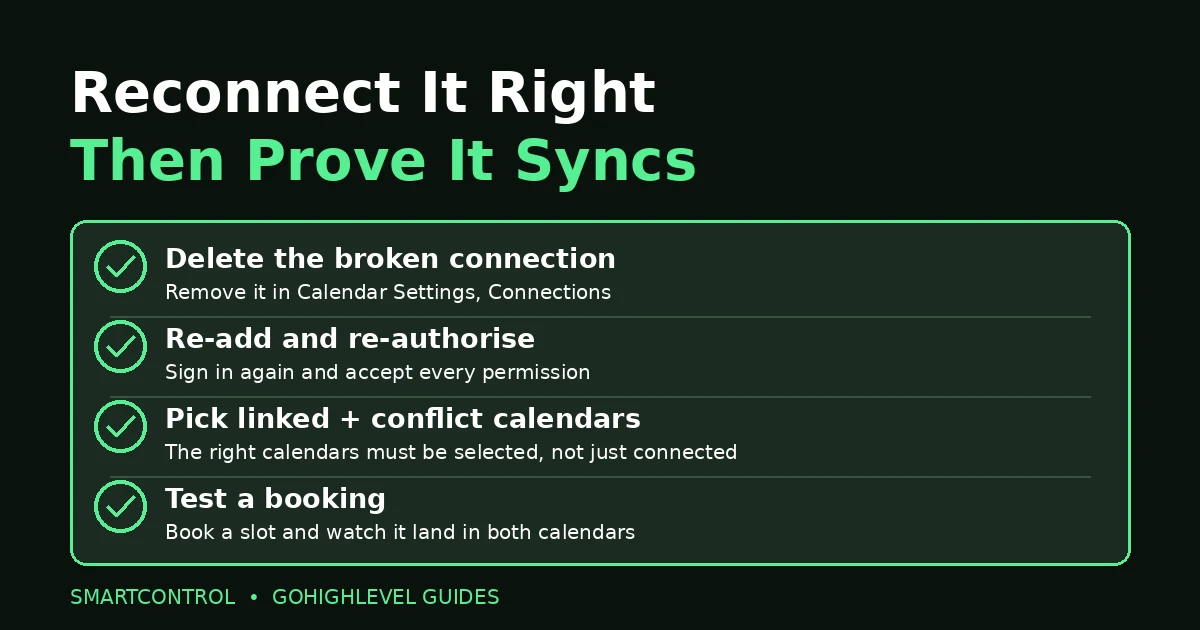
Reconnect it right, then prove it syncs: delete, re-add, select the right calendars, and test a booking.
Symptom-to-fix table
| If you see this | Check this first |
|---|---|
| No available slots at all | Business hours, oversized buffers, or a long minimum notice |
| Double bookings | Disconnected external calendar, or the wrong linked calendar |
| Sync stopped after months of working | Expired authorisation — reconnect and re-authorise |
| Reminders not sending | Do Not Disturb, a bad phone number, or the reminder workflow itself |
| Bookings land in the wrong calendar | The linked calendar selection, not the connection |
Use this table when your GoHighLevel calendar keeps disconnecting but you are not sure which fix applies. Reminder workflows deserve a special mention: when the calendar disconnects, the workflows that depend on it break quietly too, and a missed reminder looks like a workflow problem when it is really a sync problem. And when broken sync double-books the same person, the records can split too — see GoHighLevel Duplicate Contacts? 6 Causes and Fixes. Our workflow troubleshooting post covers that side: GoHighLevel Workflow Not Triggering? 9 Checks in Order.
Frequently asked questions
How often does a GoHighLevel calendar connection expire?
A GoHighLevel calendar keeps disconnecting roughly every 90 days when OAuth tokens lapse, though a password change or a revoked permission can break it at any time. Treat re-authorisation as routine maintenance, not a one-time setup.
Why does Outlook ask for admin approval?
Corporate tenants often restrict third-party app consent, so an admin must approve the LeadConnector app before a user can connect. If the connection keeps failing in a company account, that approval is the first thing to check.
Does deleting the connection delete my appointments?
No. Deleting the connection removes the link, not the appointments. When you reconnect, GoHighLevel automatically pushes any unsynced upcoming appointments to the external calendar.
What if the calendar was deleted at Google or Outlook?
Use the “Fix This” option on the banner, then “Remove Deleted Calendars” to clean up the broken instances, and reconnect from scratch. Reconnecting to a deleted calendar cannot work.
Why do Free events not block my availability?
GoHighLevel only treats Busy events as blocks. An event marked Free — including all-day events, which Google defaults to Free — blocks nothing. Mark real commitments Busy.
The short version
When your GoHighLevel calendar keeps disconnecting, resist the urge to rebuild anything. Read the banner, delete the broken connection, re-add it with full permissions, select the right linked and conflict calendars, attach the user to the calendar, and test a booking. Then set the 90-day reminder, because the token will lapse again — and next time you will catch it before your clients do.
If calendar sync issues are tangled through your booking setup, book a free GoHighLevel strategy call and we will sort it with you.
