
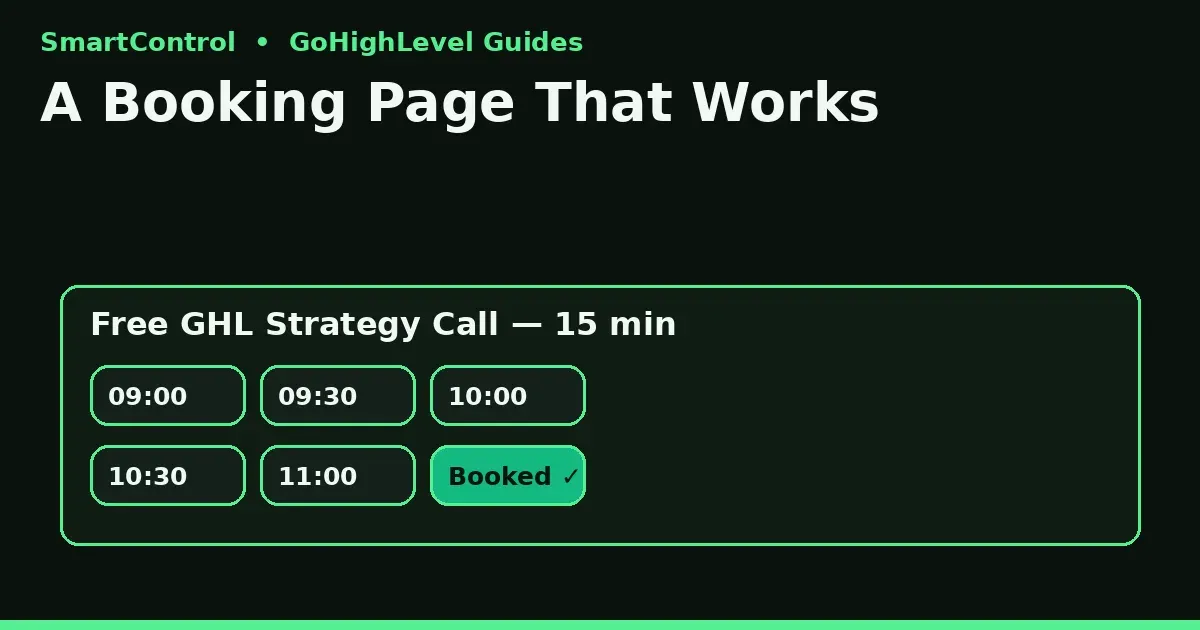
GoHighLevel Calendar Setup: Booking Calendar That Works
A calendar inside GoHighLevel is more than a booking page. Set it up right and every booking creates a contact, enters a pipeline, and gets reminders on its own. Set it up wrong and you get double bookings, empty slots that never show, and no-shows nobody followed up.
The short answer: go to Calendars, create a calendar, pick the right type for the job, set your real hours, add buffer time, connect your Google or Outlook calendar, attach a short form, turn on reminders through a workflow, and test one real booking before you share the link. Each step below takes minutes. Skipping one is what breaks bookings later.
Why do this inside Go High Level at all? Because one online booking system that lives inside your CRM software beats a separate appointment scheduling software bolted on the side. With GoHighLevel booking, the appointment, the contact record, the pipeline stage, and the reminders all live in one place. That is the whole point of GoHighLevel automation for bookings — and it is why this GoHighLevel tutorial skips nothing: follow it once, in order, and your GoHighLevel calendar works the way GoHighLevel help promises it should.
Step 1: Pick the right calendar type (this decides everything)
Go to Calendars → + New Calendar and choose the type by the job, not by habit:
| Type | Use it when… |
|---|---|
| Personal / Simple | One person takes the bookings (a solo owner, one coach) |
| Round Robin | A team shares leads — the system rotates who gets the next booking |
| Collective | The booking needs two or more people on the same call |
| Service | You sell timed services (consults, inspections, appointments with a menu and price) |
| Class / Group | Many people book the same slot (webinars, classes, group sessions) |
Picking Round Robin for a one-person business, or Personal for a team, creates the first mess most accounts live with for months. Decide here, once.
Step 2: Set the basics a lead actually sees
- Calendar name: say what it is — “Free GHL Strategy Call”, not “Calendar 1”. The lead sees this name on the booking page and in emails.
- Description: one line on what happens on the call and how long it takes.
- Duration: match reality. A 15-minute call that needs 30 creates late starts all day.
- Time zone: the calendar displays in the visitor’s zone automatically — but your availability hours are set in yours. Keep that in mind if your team is not in the US and your clients are.
Step 3: Availability, buffers, and the rules that stop chaos
- Working hours: set the hours you truly take calls. Open slots outside them do not exist for leads — that is a feature, not a bug.
- Buffer time: add 10–15 minutes between calls. Back-to-back bookings look efficient and feel like a train wreck.
- Minimum notice: stop same-hour surprises. 2–4 hours is a sane default for strategy calls.
- Max bookings per day: cap it before your calendar fills with low-fit calls.
- Date range: open 2–3 weeks ahead. Too far out and people forget; too tight and hot leads bounce.
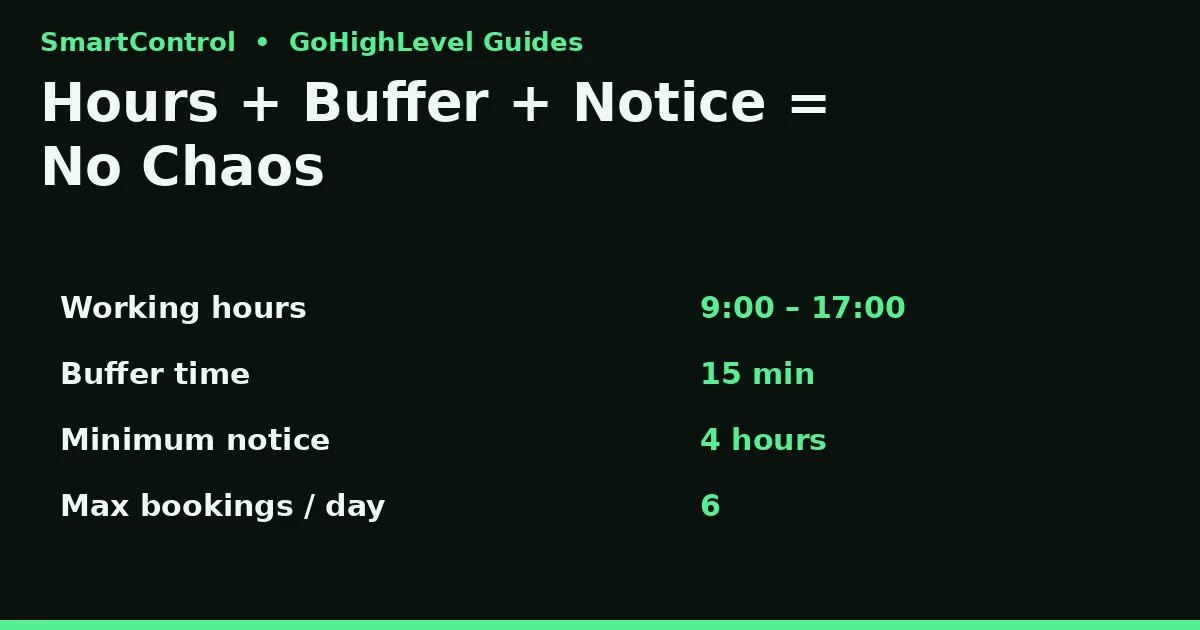
Availability hours, buffer time, and minimum notice — the three settings that stop double bookings and surprise calls.
Step 4: Connect your real calendar (or accept double bookings)
In the calendar’s settings, connect your Google Calendar or Outlook and turn on conflict checking. GoHighLevel then blocks slots where you are already busy. Skip this step and the system will happily book a sales call on top of your dentist appointment — it does not know what it cannot see.
Step 5: Attach a short form — qualify before the call
Attach a small custom form to the calendar (calendar settings → form). Ask only what you need to run a good call: name, email, phone, website, and one question about the main problem. Every extra field costs bookings. The answers land on the contact record in your GoHighLevel CRM, so you walk into the call already knowing the story.
Step 6: Reminders are a workflow, not a calendar setting
The calendar books the call. A workflow protects it. Build one on the Customer Booked Appointment trigger:
- Send a confirmation email + SMS right away (“You’re booked for…”).
- Reminder SMS + email 24 hours before.
- Reminder SMS 1–2 hours before.
- If the status becomes No-Show, start a short rebook flow the same day.
- If the call completes, move the opportunity stage and start follow-up.
This single workflow is where most no-shows die. A calendar without it is only half a system.
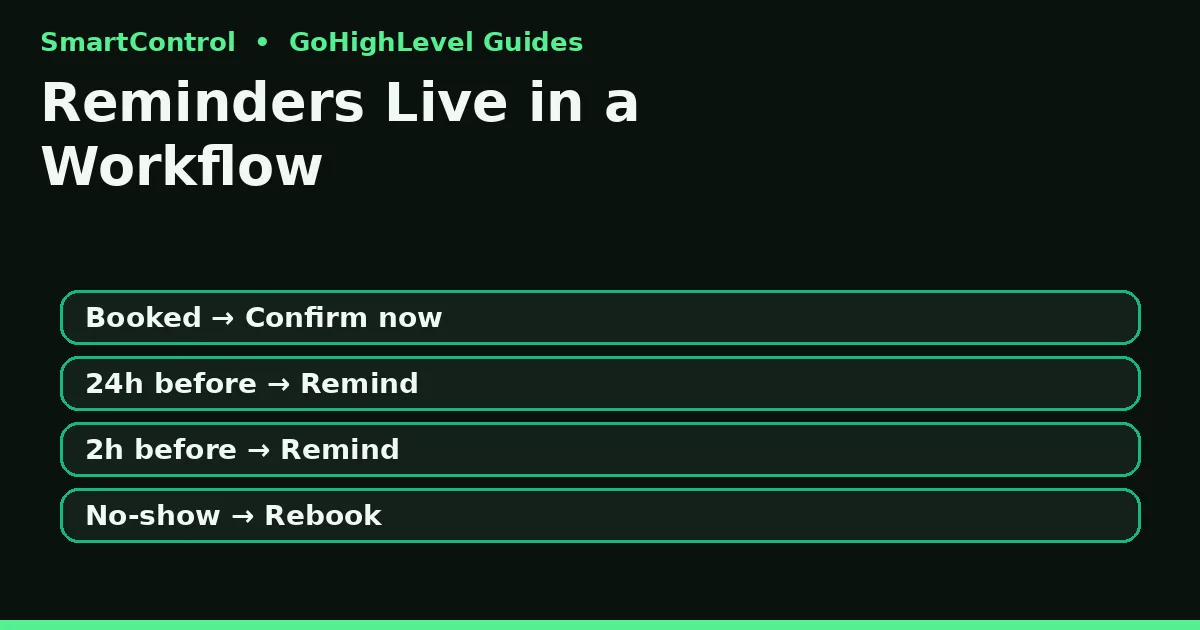
The reminder workflow behind the calendar — confirmation, two reminders, and a no-show rebook path.
Step 7: Share it the right way, then test like a lead
Share the booking link on your site, in emails, and in your bio — or embed the calendar widget on a funnel or website page for a smoother path. Then book a real test appointment with your own phone and email, in an incognito window. Check four things: the slot shows, the confirmation arrives, the contact and opportunity appear in the CRM, and the reminders are scheduled. If one fails, fix it now — leads will not report it, they will just leave.
Why does my calendar show no availability?
The three usual causes: your working hours are set in the wrong time zone, a connected calendar marks you busy all day (an all-day “Out of Office” event), or the date range / minimum notice hides every slot. Check those three before you rebuild anything.
Do it yourself, or get help?
Do it yourself if you run one calendar for one person — this guide is the whole job. Get help if you run a team with round robin rules, paid appointments, and reminder flows across several services. That setup has ten moving parts, and one wrong setting quietly eats bookings.
Book a GHL Strategy Call and bring your current calendar link: https://smartcntrol.com/book-a-call — we will check its settings live and tell you what is costing you bookings.
FAQ
How do I create a calendar in GoHighLevel?
Go to Calendars, click New Calendar, pick the type, set name, duration and hours, connect your Google or Outlook calendar, save, and share the booking link.
What is the difference between Round Robin and Collective calendars?
Round Robin assigns the booking to one team member in rotation. Collective puts two or more team members on the same call.
Why is my GoHighLevel calendar showing no time slots?
Check time zone on your hours, busy all-day events on the connected calendar, and your minimum notice plus date range settings — one of the three is almost always it.
Can I charge for appointments in GoHighLevel?
Yes. Connect Stripe and set a price on a Service calendar or a paid booking flow, and payment is taken at booking.
Do calendar reminders send automatically?
Only if a workflow sends them. Use the Customer Booked Appointment trigger with confirmation and reminder steps — the calendar alone does not chase no-shows.
Can I embed the calendar on my own website?
Yes. Copy the calendar’s embed code or widget link into any page — GoHighLevel site, WordPress, or a funnel step.
Keep learning: Why Is My GoHighLevel Workflow Not Triggering? · GoHighLevel Workflow Automation Guide · How to Add Custom Code in GoHighLevel
SmartControl builds funnels, websites, pipelines, calendars, and automations in GoHighLevel for agencies and local businesses. Last updated: October 2026.
