
GoHighLevel Booking Link Not Working: 6 Fixes
Your booking link worked yesterday. Today it does not. A lead clicks it and lands on an error page, or on nothing at all. No booking comes in, and you hear about it from the lead — not from your own system. When a GoHighLevel booking link not working shows up like this, the cause is often small: the calendar slug changed, and every old link still points at the old address.
In short: a GoHighLevel booking link is built on a calendar slug — a short text address like strategy-call. If that slug changes, HighLevel says plainly that previously shared links may stop working. The fix is not one click: find the current slug, copy the current link, update every place the old link lives, then test each one.
In this post:
Why GoHighLevel booking link not working happens
6 fixes that get your booking link working again
Symptom-to-fix table
Frequently asked questions
Why GoHighLevel booking link not working happens
A calendar slug is the custom part of your booking link, set in the Custom URL field when you create the calendar. Use lowercase letters and hyphens only — no spaces, no special characters. That slug makes your link yours, and it shows up everywhere: the standalone link, the booking widget on your site or funnel, every button in your emails and texts, and the group booking page.
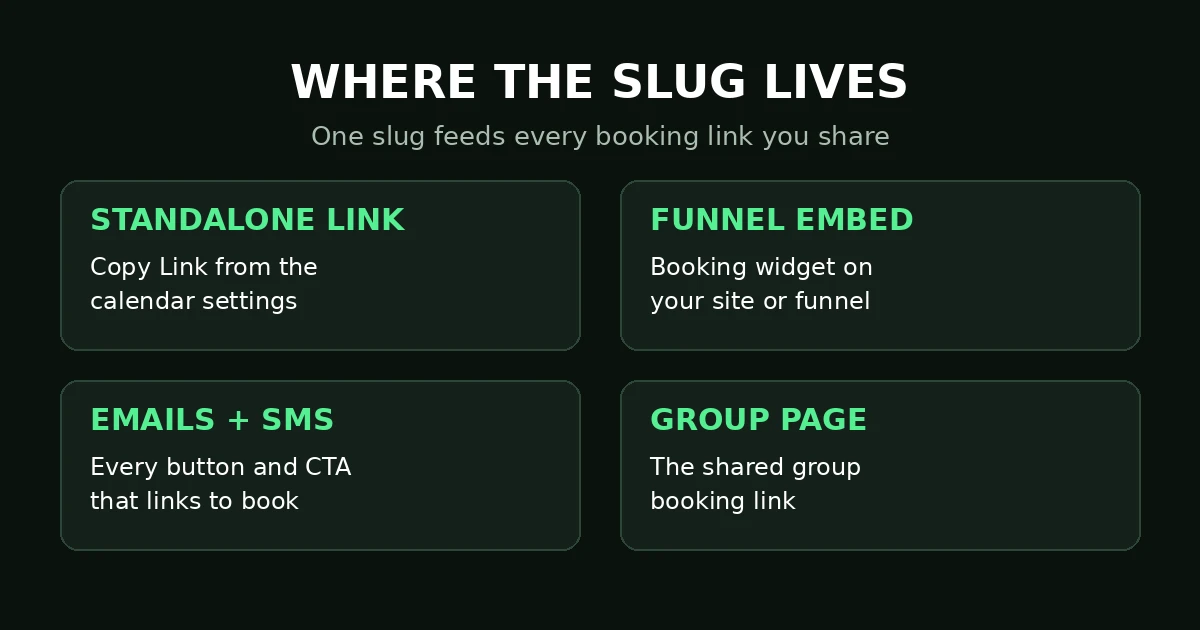
One slug feeds every booking link you share.
When the slug changes, the old address dies — it does not redirect on its own. Anyone clicking an old button, email link, or ad lands on a dead page. That is why a GoHighLevel booking link not working problem often looks bigger than it is: the calendar is fine and the booking page is fine. Only the address people were given is wrong.
Fresh reports show this is not just theory. In October 2026, an agency owner posted in the HighLevel community that hundreds of client sites were hit after a schedule slug update. However the slug changed — update, teammate edit, or rebuild — the recovery is the same: find the current slug and fix every placement.
Before you touch anything, rule out the simple cases: the calendar still exists, is assigned to the right user or group, and is not paused or past its date range. If the calendar itself is gone, rebuild it first — no link fix will help. If it is live and loads from its current link, you have a slug problem, and the six fixes below will sort it.
6 fixes that get your booking link working again
Work through these in order, and do not skip the testing steps. Most GoHighLevel booking link not working cases are fixed by step three, but the later steps stop the same problem from coming back next week.
Fix 1: Test the link in a private window
Open the booking link your leads actually use, in a private window, while logged out. A link that works for you while logged in can still fail for a stranger. If the private-window test fails, the problem is real, not a cache issue on your browser. A failed private-window test confirms a real GoHighLevel booking link not working case. Note the error: “not found” means a wrong slug; a page with no times means availability settings.
Fix 2: Copy the current link and slug from the calendar
Open the calendar and use Copy Link for the current booking link. Compare it character by character with the link your leads have — one changed word or extra hyphen is enough to break it. If the current slug is not the one you want, set a clear slug in the Custom URL field — lowercase letters and hyphens only. But remember: changing the slug again breaks every link that uses the current one. Set the slug once, then fix the placements.
Fix 3: Fix the buttons on your site
Check every “Book a call” button on your website, page by page. A button that links to the old slug keeps a GoHighLevel booking link not working fault alive no matter what you fix inside HighLevel. Update each button to the current link from Fix 2, and check any booking widget embed too. After each fix, open the page in a private window and click the button yourself.
Fix 4: Fix the funnel embeds
Funnels hide old links well — check every page with a booking widget or button, including thank-you and order-form pages. Replace old embeds with the current link or a fresh embed from the calendar. This is the step most people skip, and it is why a GoHighLevel booking link not working complaint often returns a week later.
Fix 5: Fix the links in your emails and texts
Old links live longest in messages — search your workflows, email templates, and SMS templates for the old slug and update each one to the current link. Pay special attention to reminder and follow-up messages — those go out automatically and you will not see them fail. Update saved replies and snippets too: one old template can quietly send broken links for months.
Fix 6: Re-test every placement, then lock the slug
Test every placement you fixed — site buttons, funnel pages, email links, text links, and the group page. Use a private window each time, and book a test appointment end to end. Then tell your team the slug is locked: no one changes it without updating the placement list first. Keep your booking link in one custom value used across messages, so the next change means one edit. That turns the next GoHighLevel booking link not working case into a five-minute fix.
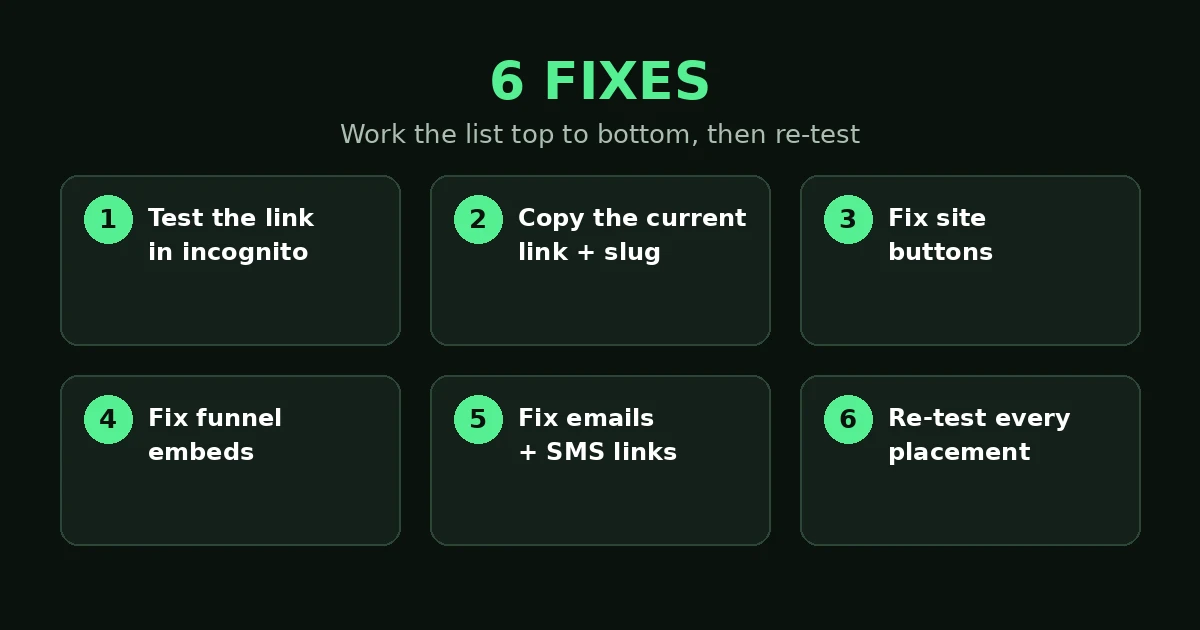
The six fixes in order: test, copy, fix site buttons, fix funnel embeds, fix emails and texts, re-test.
Symptom-to-fix table
What you see | Most likely cause | Fix to try first |
|---|---|---|
Booking page shows “not found” | Slug changed, old link is dead | Fix 2, then Fix 3–5 |
Link works for you, fails for leads | You are logged in, or your browser cached the page | Fix 1, then Fix 2 |
Page loads but shows no times | Availability or date range, not the link | Check calendar availability, not the slug |
Some pages book fine, one page fails | That one page still has the old link or embed | Fix 3 or Fix 4 for that page |
Old texts and emails still fail | Templates still carry the old slug | Fix 5 |
Frequently asked questions
What is a GoHighLevel calendar slug?
The slug is the custom text in your booking link, set in the calendar’s Custom URL field, using lowercase letters and hyphens. It is the part that makes the booking page yours — and the part that breaks old links when it changes.
Why did my GoHighLevel booking link not working problem start all at once?
A slug change breaks every old link at the same time, which is why the failure looks sudden and wide. One edit can take down site buttons, funnel embeds, emails, and texts together. That is why fixing a GoHighLevel booking link not working fault has to cover every placement, not just the one link you tested first.
Does HighLevel redirect the old link to the new one?
No. HighLevel’s own guidance says previously shared links may stop working when the slug changes, and tells you to update all placements and test the new link in a private window. Do not rely on a redirect that does not exist.
How do I stop this from happening again?
Lock the slug and list every place it appears. Store the booking link in one custom value used across messages, so a future change means one edit. And test the link in a private window after any calendar change, before your leads find the problem first.
Is this the same as my calendar disconnecting from Google?
No. A disconnected Google Calendar stops sync and can cause double bookings — a different problem, covered in our post on GoHighLevel calendar keeps disconnecting. A GoHighLevel booking link not working fault is about the link address itself, and can happen while sync is healthy.
Get the link fixed, then keep it fixed
A broken booking link costs you the leads who never tell you they tried. Work the six fixes in order, test every placement in a private window, and lock the slug with your team. If you want help setting up calendars, booking links, and workflows so this stays fixed, book a free GoHighLevel strategy call.
Keep learning: GoHighLevel Calendar Setup: Booking Calendar That Works · GoHighLevel Appointment Reminders Not Sending: 5 Fixes
