
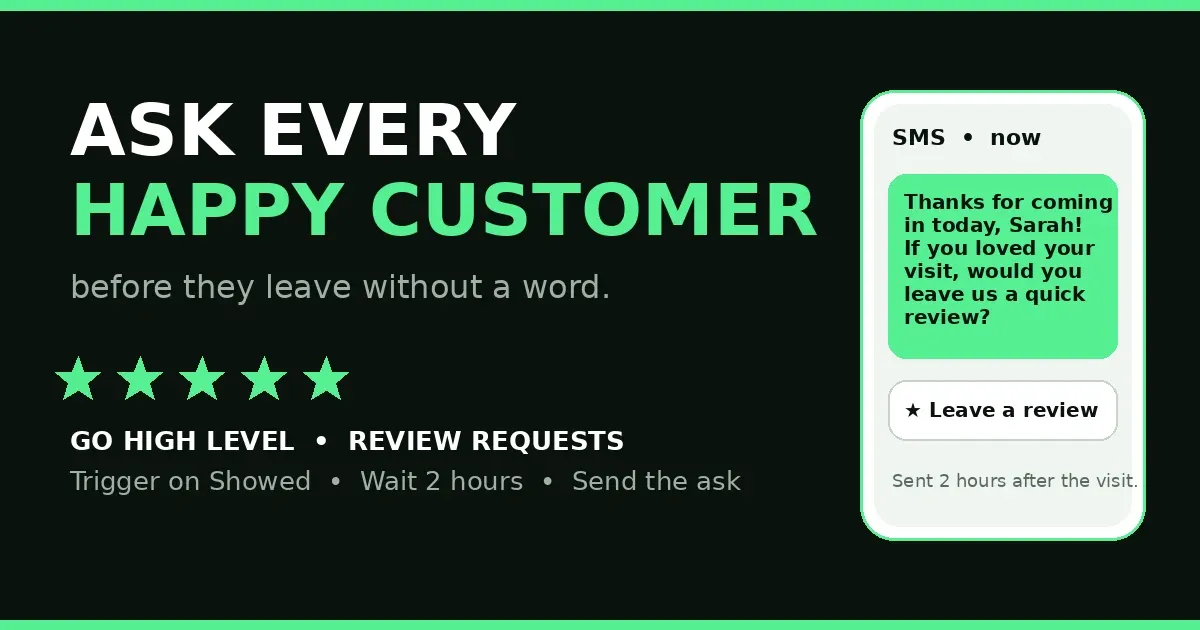
GoHighLevel Review Request: 6 Fixes That Get Reviews
Your happiest customer walks out smiling and is never heard from again. Nobody asked for a review, so no review exists. M Nur Ul Amin showed this last week: happy customers leave without a word because nobody asked at the right moment. The fix is to ask on time, every time, without anyone having to remember. That is what a GoHighLevel review request does.
In short: a GoHighLevel review request is a small workflow that fires when the job is done: trigger on Appointment Status set to Showed, wait 2 hours, then send the ask by SMS or email. One workflow, and every customer gets asked the same way.
In this post:
- Why happy customers stay silent
- The GoHighLevel review request workflow in 3 steps
- 6 fixes for a review request that gets ignored
- When the review request never arrives
- Frequently asked questions
Why happy customers stay silent
A review is a small task a customer does in the moment they are asked, or not at all. The day after a visit, the feeling has cooled. A week later, they cannot remember who did it. The moment that matters is the first few hours after the visit.
Most businesses ask by hand. The front desk is busy, the owner is on the next job, and the ask never happens. The customers who do leave reviews are often the unhappy ones, because unhappiness is a reason to write. Happiness is not. It just fades.
A GoHighLevel review request removes the memory from the job and asks every customer the same way, every time. One good review is luck. A steady flow is a system.
The GoHighLevel review request workflow in 3 steps
Build it in Automations, then Workflows, then Create Workflow. Start from scratch so you control every step.
Step 1 — Trigger on Appointment Status set to Showed. This is the moment the job is done. Do not trigger on Booked — a booking is a promise, not a finished job. The Appointment Status trigger has a Showed value built in — it is the same trigger that powers no-show recovery, only with the opposite filter. Pick your calendar and Showed, and it fires only when staff mark the visit as showed.
Step 2 — Wait 2 hours. Add a Wait step of 2 hours right after the trigger. The customer needs time to get home: asking in the car park feels rushed, asking the same evening feels natural. Two hours is the gap HighLevel’s own playbook uses. Wait long enough to feel human, short enough that the visit is still fresh.
Step 3 — Send the review request. Add the Send Review Request action and pick SMS or email. SMS gets read faster, so use it when you have the mobile number. The message text lives in Reputation settings, not the workflow — write it there first (Fix 3 below). The action sends your Google review link. Save it, publish it, and run one test contact through it first.
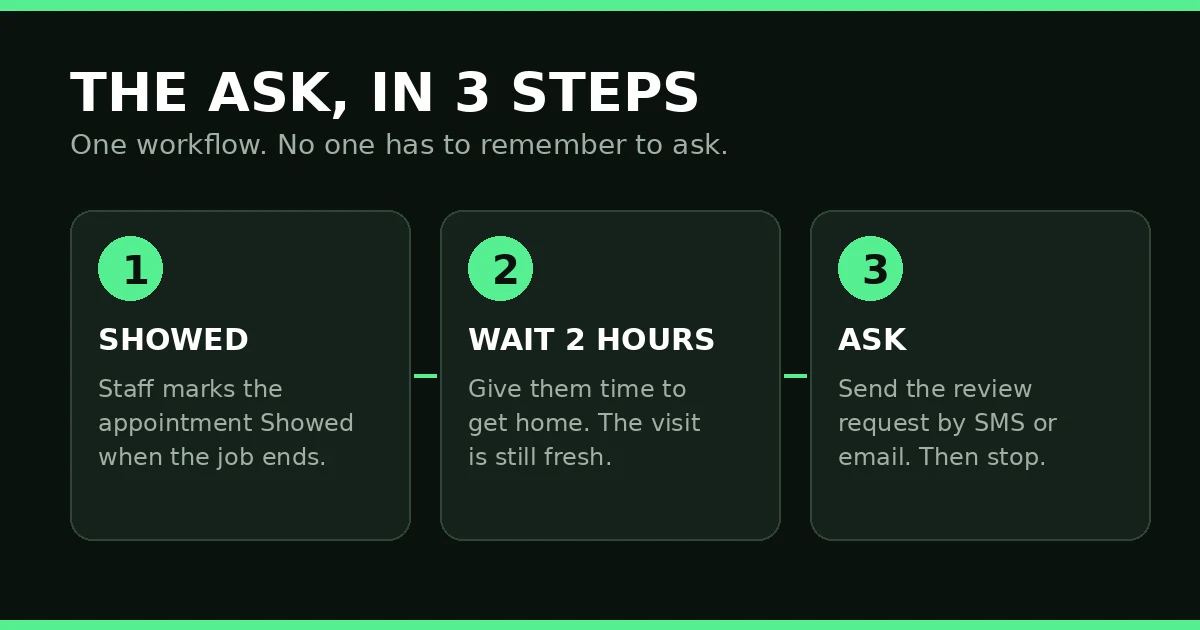
Three steps, set once: Showed, wait 2 hours, ask.
6 fixes for a GoHighLevel review request that gets ignored
Fix 1: Trigger on Showed, not on Booked
This is the most common mistake. A workflow on Customer Booked Appointment asks for a review before the visit happens. The customer gets a review link for a service they have not received. Use Appointment Status set to Showed. No appointments? Use the trigger that means the job is done: an opportunity moved to Won, or an invoice marked paid. The trigger must mean finished, not booked.
Fix 2: Wait 2 hours before you ask
Ask at once and the customer is still in your chair; ask the next day and the feeling is gone. Two hours is the sweet spot for most service businesses. Set the Wait step to 2 hours and leave it alone. One wait, one ask, then the workflow moves on. The ask comes after the visit; reminders come before it.
Fix 3: Write the message first in Reputation Settings
The Send Review Request action does not carry its own message. The words come from Reputation Settings, so if that message is blank, the request goes out blank or with a default that sounds like a robot. Write it in Reputation, then Settings, before you publish. Keep it short and personal: thank them by first name, name the service, and ask for one quick review. A good GoHighLevel review request template reads like a text from a person, not a form letter. Read it out loud. If it sounds like a form letter, cut words until it sounds like a person.
Fix 4: Connect Google Business Profile first
Connect your Google Business Profile first, under Settings, then Integrations. Once connected, GoHighLevel pulls your reviews in and builds your direct review link. Find it under Reputation, Get New Reviews. Test it on your own phone first: a broken link in a review request is worse than no request at all.
Fix 5: Ask everyone, then stop after one reminder
Never pick who gets asked. Sending only happy customers to Google, and steering unhappy ones somewhere private, is review gating — Google’s policy bans it. Ask every customer, every time. Same rule for the reminder: wait 3 days after the first ask. If no review arrived, send one gentle reminder, then stop. A second reminder is pestering. One ask, one reminder, then the workflow ends. Your GoHighLevel review request stays polite because it knows when to stop.
Fix 6: Turn re-entry off and test with a demo contact
A repeat customer should get asked once per visit, not twice for the same visit. Turn re-entry off, so a contact already in the workflow is not enrolled a second time for the same appointment. Then test it with a demo contact: mark the appointment Showed, wait the 2 hours, and check the text arrives with the right link. Publish only after the test passes.
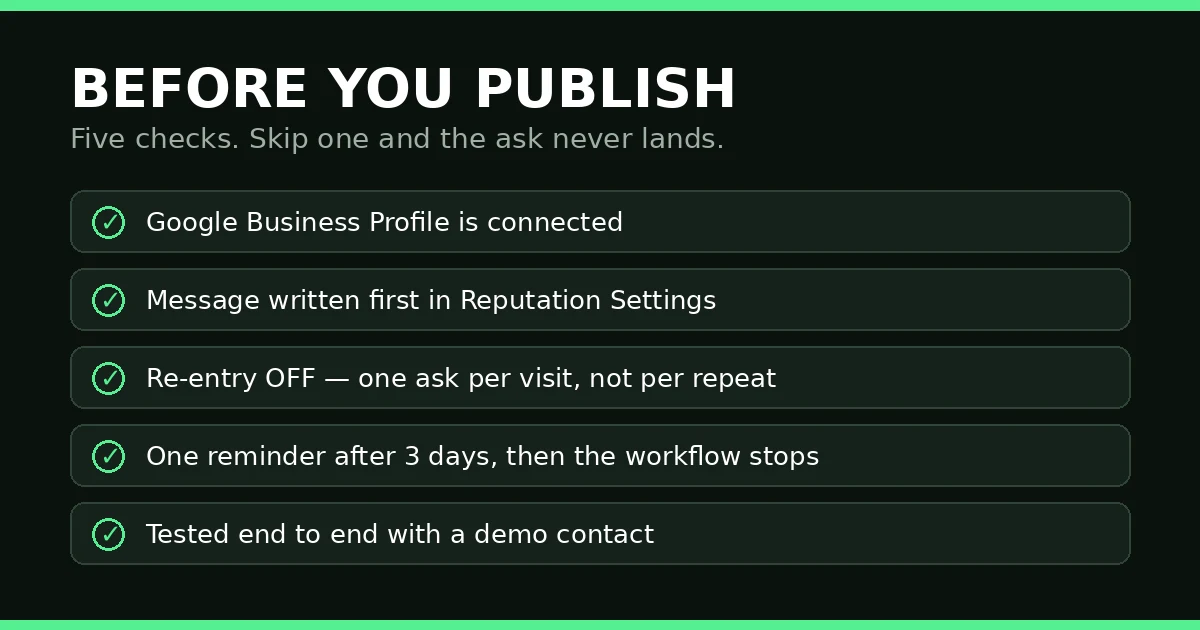
Five checks. Skip one and the ask never lands.
When the GoHighLevel review request never arrives
If requests are not going out, check these in order.
Staff never marked Showed. The trigger fires on the status change, not the appointment itself. If nobody marks the visit Showed when the job ends, nothing happens — this is the number one cause.
The workflow is still a draft. A draft workflow never fires. Check the toggle at the top and publish it.
The message is blank. The Send Review Request action uses the message from Reputation Settings. If it is empty, the request has nothing to send. Write it, save it, test again.
No phone number or email on the contact. SMS needs a mobile number, email needs an address. If the contact has neither, the request has nowhere to go.
Google Business Profile is not connected. Without it, there is no Google review link.
Check the enrollment history. Open the workflow’s enrollment history and look for the contact. If the contact is not there, the trigger never fired. If the action shows an error, the failure is in the send step.
Frequently asked questions
How do I request for a review? Ask at the moment the job is done, with a short personal message and a link. In GoHighLevel, trigger on Appointment Status set to Showed, wait 2 hours, and send the review request by SMS or email. Ask every customer, not only the happy ones.
How to write a review request? Two or three short lines: thank the customer by first name, name the service, and ask for one quick review with the link. Write it in Reputation Settings before you publish, and read it out loud. If it sounds like a form letter, cut words until it sounds like a person.
How to connect Google reviews to GoHighLevel? Connect your Google Business Profile under Settings, then Integrations. GoHighLevel then pulls your reviews into Reputation and builds your direct review link. Without this connection, the request has no Google link to send.
The ask is the system
Good work earns the review. The ask collects it. A GoHighLevel review request turns that ask into a workflow: Showed, wait 2 hours, send. Set it once, check the five boxes before you publish, and every customer gets asked the same way.
If you want the workflows ready-made instead of building each one from scratch, see the ready-made GoHighLevel snapshots at Markiva Digital on Etsy.
